
Files and folders
Back up your phone's camera roll
Turn on camera uploads once and your photos and videos go to your company's Kipuu folder on their own, several at a time, with each file's progress on screen.
Camera uploads keep a copy of the photos and videos on your iPhone or Android phone in a Kipuu folder of your choice. Your team can find them there, and if you lose or change your phone, your pictures are safe.
It's a copy, not a mirror of your phone. If you delete photos or videos from your phone to free up space, they stay in Kipuu until you delete them in Kipuu. Anything you delete in Kipuu stays in the trash for 30 days, so you can still bring it back.
Turn it on
- Open the Kipuu app and go to the Backup tab at the bottom of the screen.
- Tap Turn on camera uploads and allow access to your photos. Kipuu only asks for this permission here, never before.
- Under Upload to, choose the Kipuu folder where your photos and videos go.
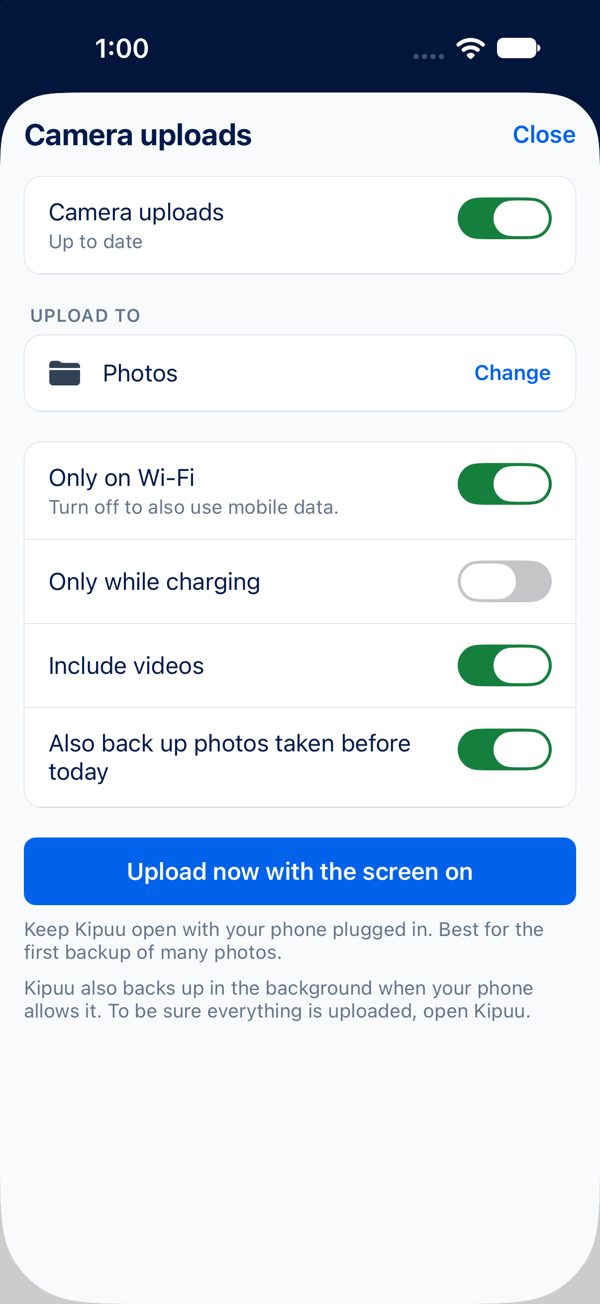
- Choose your settings: Only on Wi-Fi, Include videos, and Also back up photos taken before today if you want your whole camera roll, not just what's new.
Several uploads at a time
Kipuu doesn't upload one photo after another: it sends six photos at a time and, alongside them, up to two videos, so a long video never holds up your photos. When you open the Backup tab, it first checks your camera roll (you'll see Checking your photos…), and the first photos start uploading while it's still counting.
At the top you see how far along you are, for example Backing up 1,250 of 21,000. That number never goes back to zero: if you close Kipuu and open it again, it continues from the same count.
A card for each file
Under Uploading now, each file on its way has its own card: a small preview of the photo or video, a green bar that fills up as it goes, and how much has arrived, for example 45 of 104 MB. Once Kipuu has uploaded enough files to measure your connection, it also tells you the speed and about how long is left, for example 12 MB/s, about 35 min left.
When everything is copied, the Backup tab says Up to date. From then on, new photos and videos go up on their own.
Wi-Fi only: pauses only on mobile data
Only on Wi-Fi is on by default, so camera uploads don't use your data plan. Kipuu pauses when your phone reports that it's on mobile data, and shows Paused: waiting for Wi-Fi. Keep in mind that some connections look like Wi-Fi to your phone, such as another phone's hotspot or a VPN running over mobile data; in those cases the backup keeps uploading. If you want it to use mobile data too, turn off Only on Wi-Fi.
It picks up on its own
You don't have to touch anything after a pause. While Kipuu is open, on any tab, it checks every few seconds and starts again by itself when Wi-Fi or the internet comes back. If you close the app, it continues from where it stopped the next time you open it, and a photo that was already backed up isn't uploaded again.
If a photo can't upload after a few tries, Kipuu sets it aside so the rest keep going, and tells you how many are waiting. Tap Retry to send them again.
Switching tabs, minimizing or locking your phone
The backup keeps going while you use the rest of the app: you can open Files, Recent or Account and come back to the Backup tab to see how it's doing. Nothing starts over.
On iPhone, Kipuu backs up in batches while it's minimized. As soon as you start to leave Kipuu, it hands iPhone a batch of photos and videos already saved on the phone (up to 50 MB each), and iPhone uploads them in the background, even if you switch to another app, lock the screen, or iPhone closes Kipuu. When a batch is done, iPhone briefly wakes Kipuu so it can hand over the next one. iPhone decides when and how fast each batch goes: it can take a few minutes or wait until you're on Wi-Fi or charging, so the backup advances in steps rather than nonstop. Only on Wi-Fi is respected even in the background: those uploads never use mobile data. Longer videos and photos that are only in iCloud wait until you open the app. When you come back, Kipuu shows what arrived, right where you left it, without uploading anything twice.
The first backup of a big camera roll goes much faster with Kipuu open and the phone charging: with the app open, Kipuu uploads without waiting for iPhone's turns.
On Android, the backup keeps uploading when you minimize Kipuu or lock the screen. While it uploads, you'll see a quiet notice in the notification bar, Backing up your photos, which is how Android knows to keep Kipuu running. Tap it to open Kipuu. If Android still closes the app, for example to save battery, the backup continues from where it stopped the next time you open Kipuu.
Tips for a big camera roll
- To back up faster, keep Kipuu open and plugged in. It can be on any tab. Kipuu keeps the screen on while it uploads so it doesn't stop. With a lot left to copy, the Backup tab reminds you of this.
- Every so often, iPhone and Android also let Kipuu wake up on its own for a few minutes and upload a bit more, even with the screen locked. They decide when that happens. The sure way is to keep the app open.
- If you only let Kipuu see some of your photos, it backs up only those. To add more, tap Choose more photos.
To stop backing up, open the camera upload settings and tap Turn off camera uploads. What's already in Kipuu stays there.