
Billing and security
Two-step verification
Add a 6-digit code from an authenticator app when you sign in on a new browser or device.
- Install an authenticator app on your phone, such as Google Authenticator, Microsoft Authenticator or 1Password.
- In Kipuu, open My account and choose Turn on under Two-step verification.
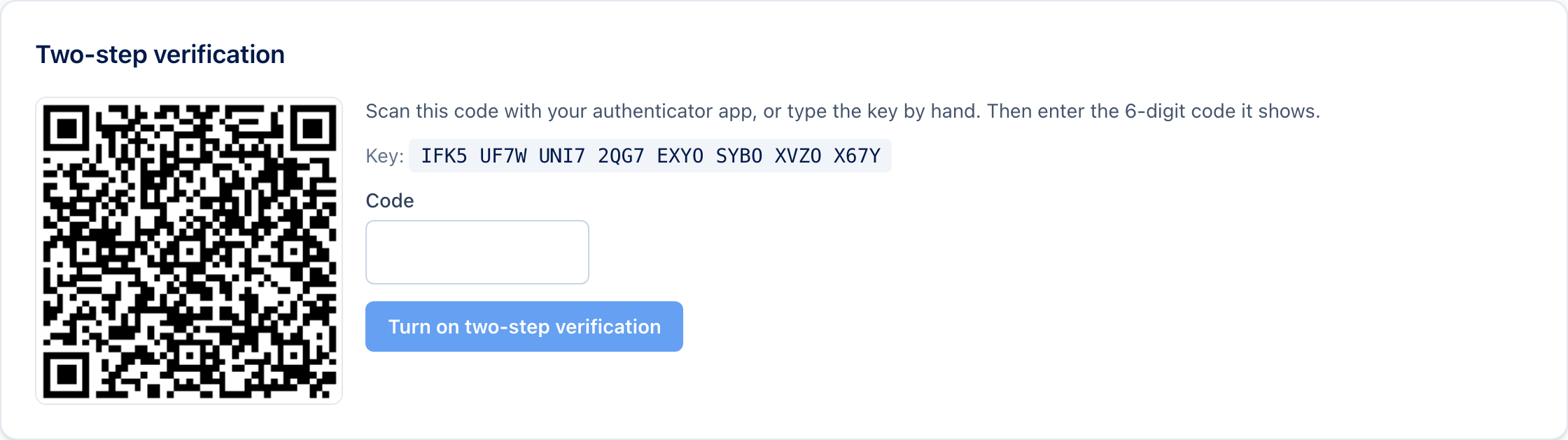
- Scan the QR code with the app, or type the key by hand.
- Type the 6-digit code the app shows to finish.
- Save your 10 backup codes somewhere safe. Each one works once if you lose your phone.
Signing in
After your password, Kipuu asks for the code from the app. On the web, once you enter it, that browser becomes a trusted device for 30 days and Kipuu won't ask for the code there again. See Trusted devices.
Turn it off
In My account, type your password and choose Turn off. Turning it on and off is saved in your company's activity log.