Files and folders
Share files with people outside your company
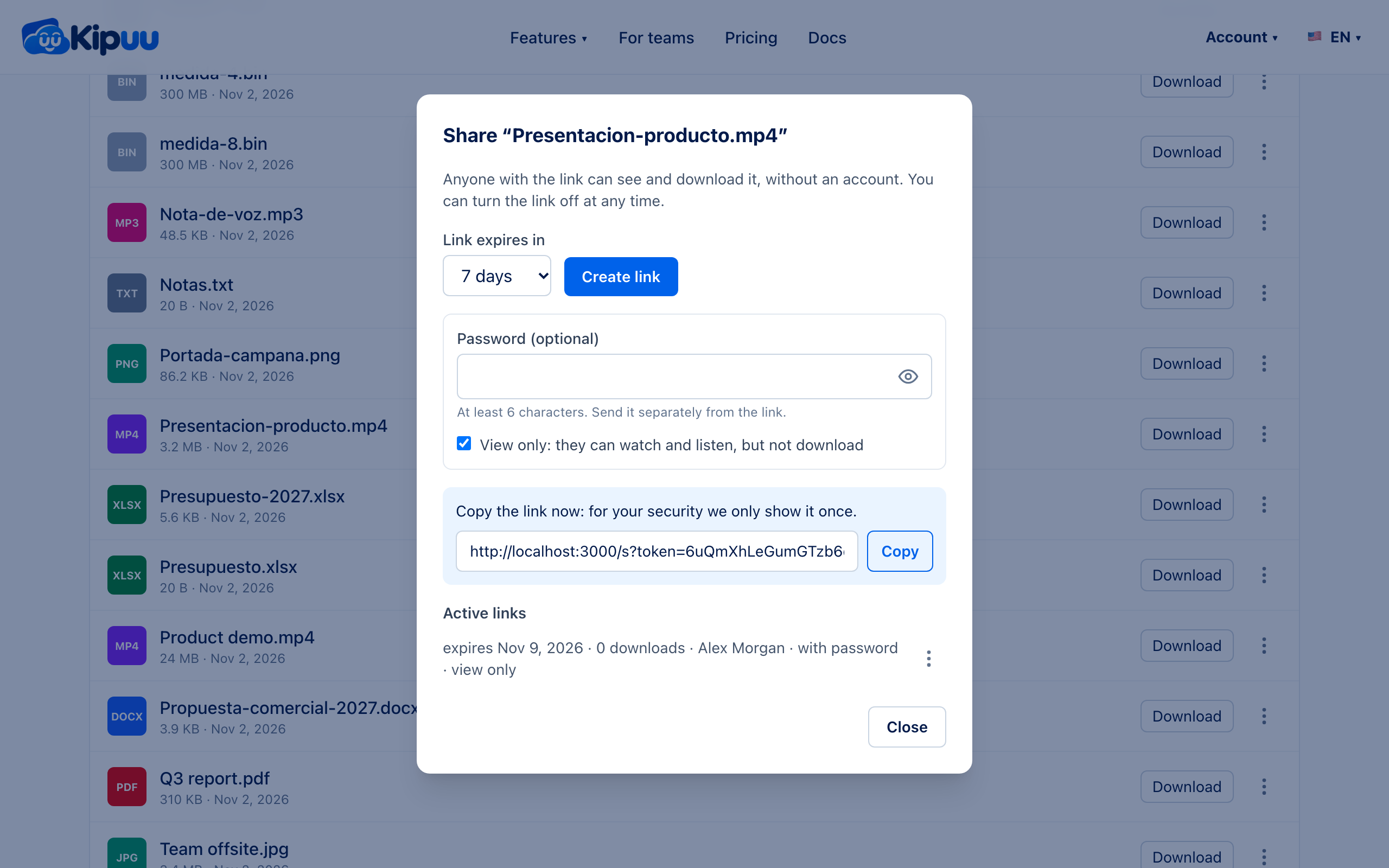
Send a link to a file or folder. It works without an account, expires when you choose, and you can turn it off.
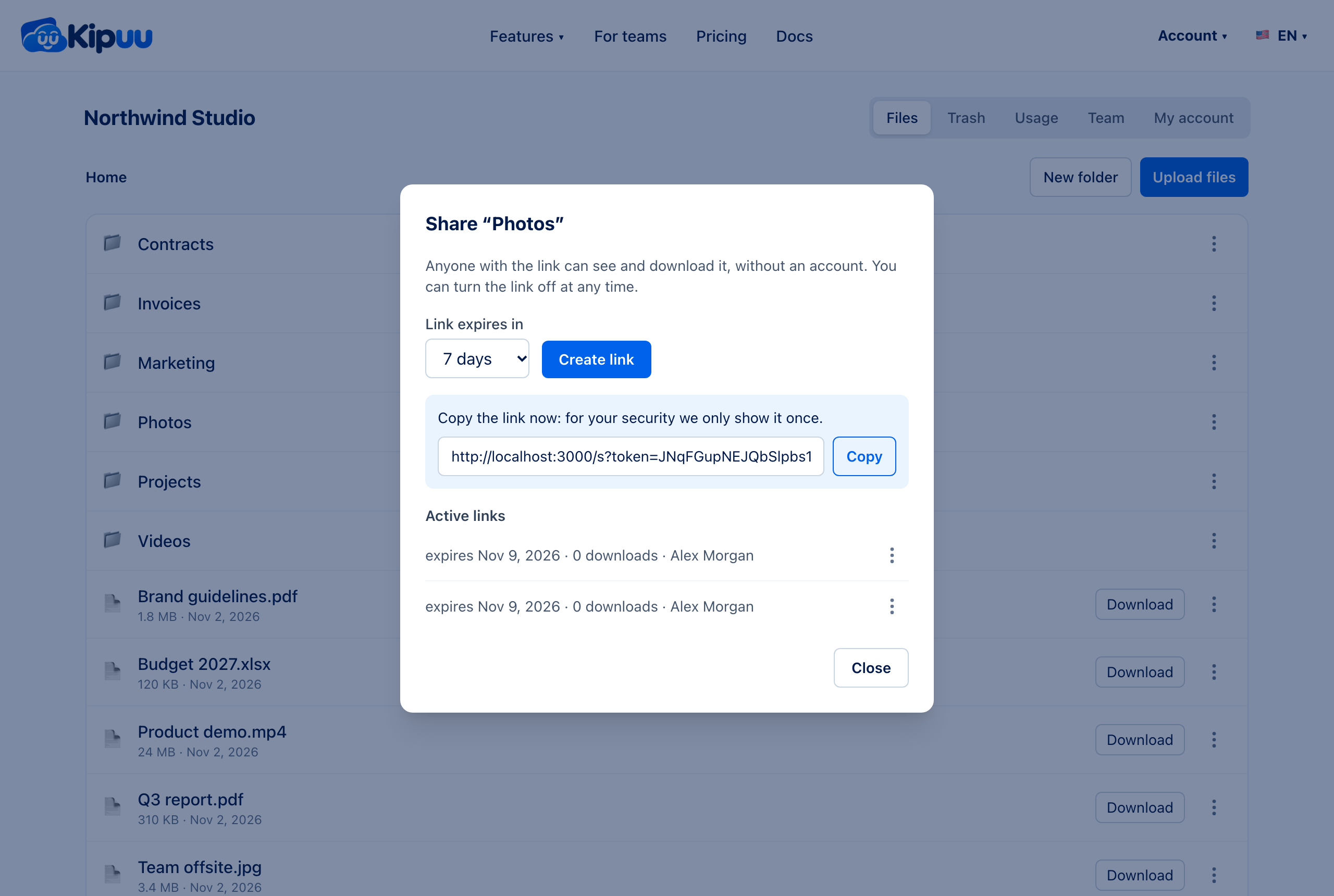
- Open the three dots next to a file or folder and choose Share link.
- Choose when the link expires: 1, 7 or 30 days.
- Tap Create link and copy it. For your security, Kipuu shows it only once.
- Send it by email, chat or any app you like.
What the other person sees
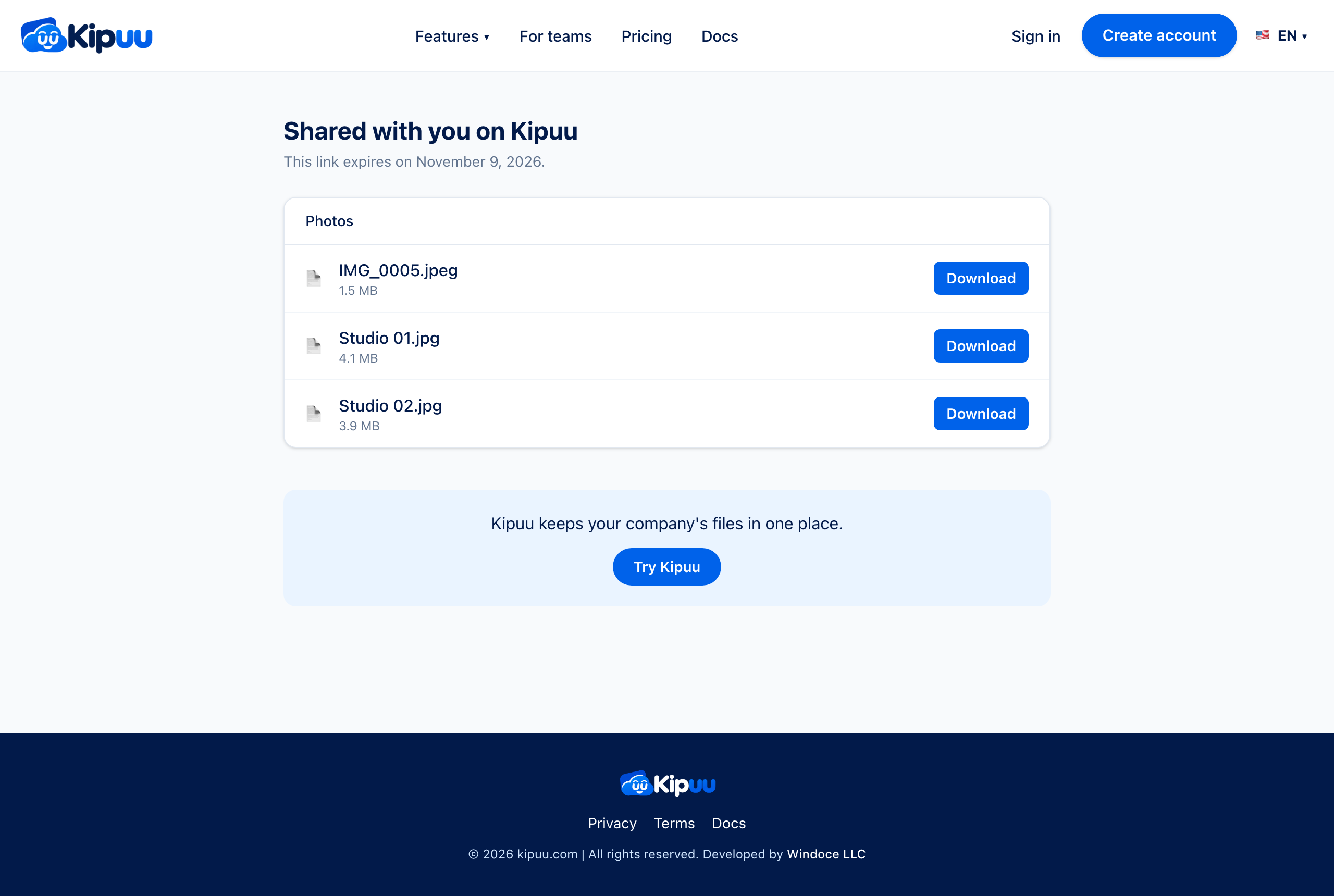
They open the link in any browser and download the file. If you shared a folder, they can open the folders inside it, but never anything outside it.
Turn a link off
In the same window you see the active links, when each one expires and how many downloads it has. Use the three dots next to a link to turn it off. Moving the file or folder to the trash also turns its links off.
Review links for clients
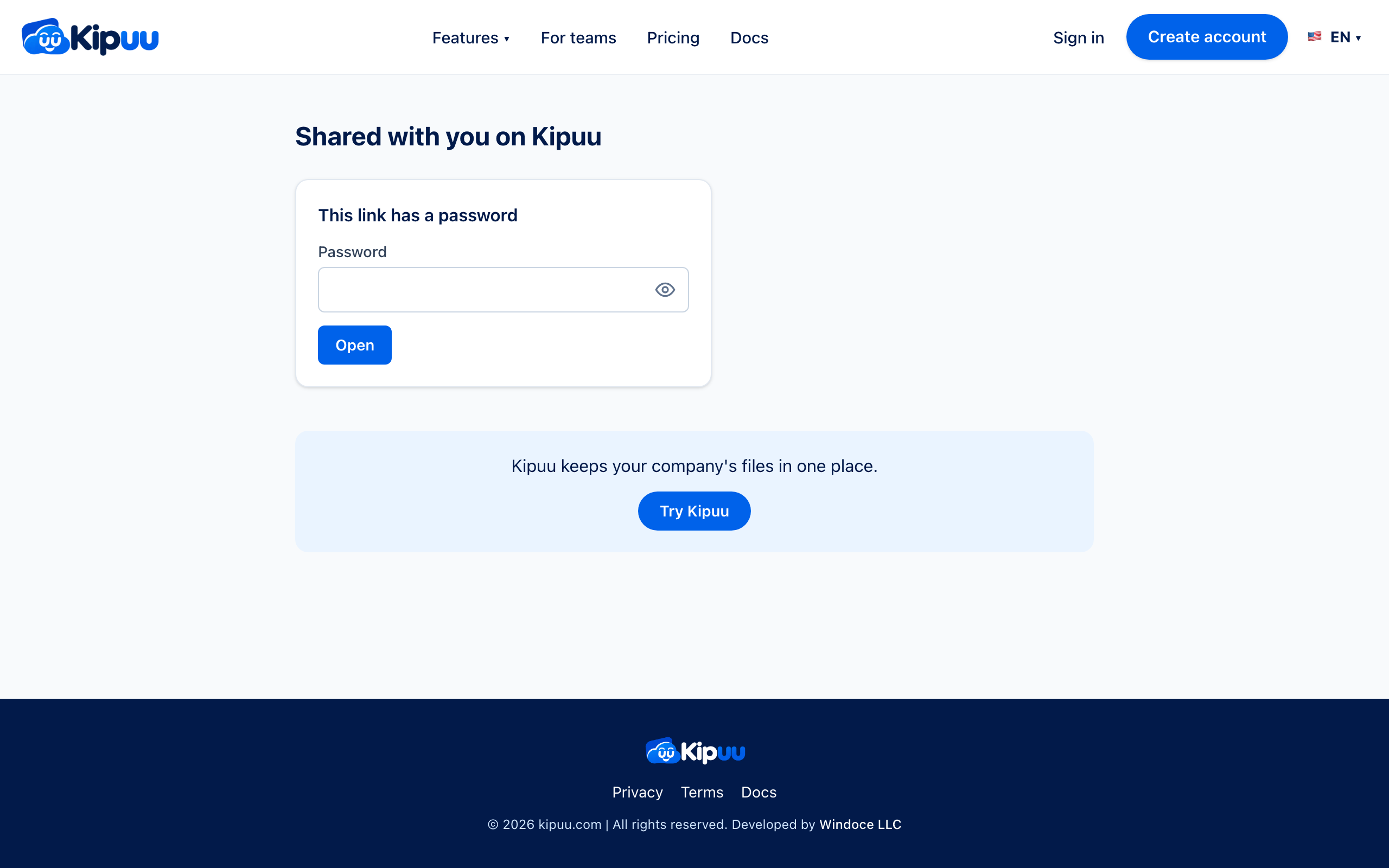
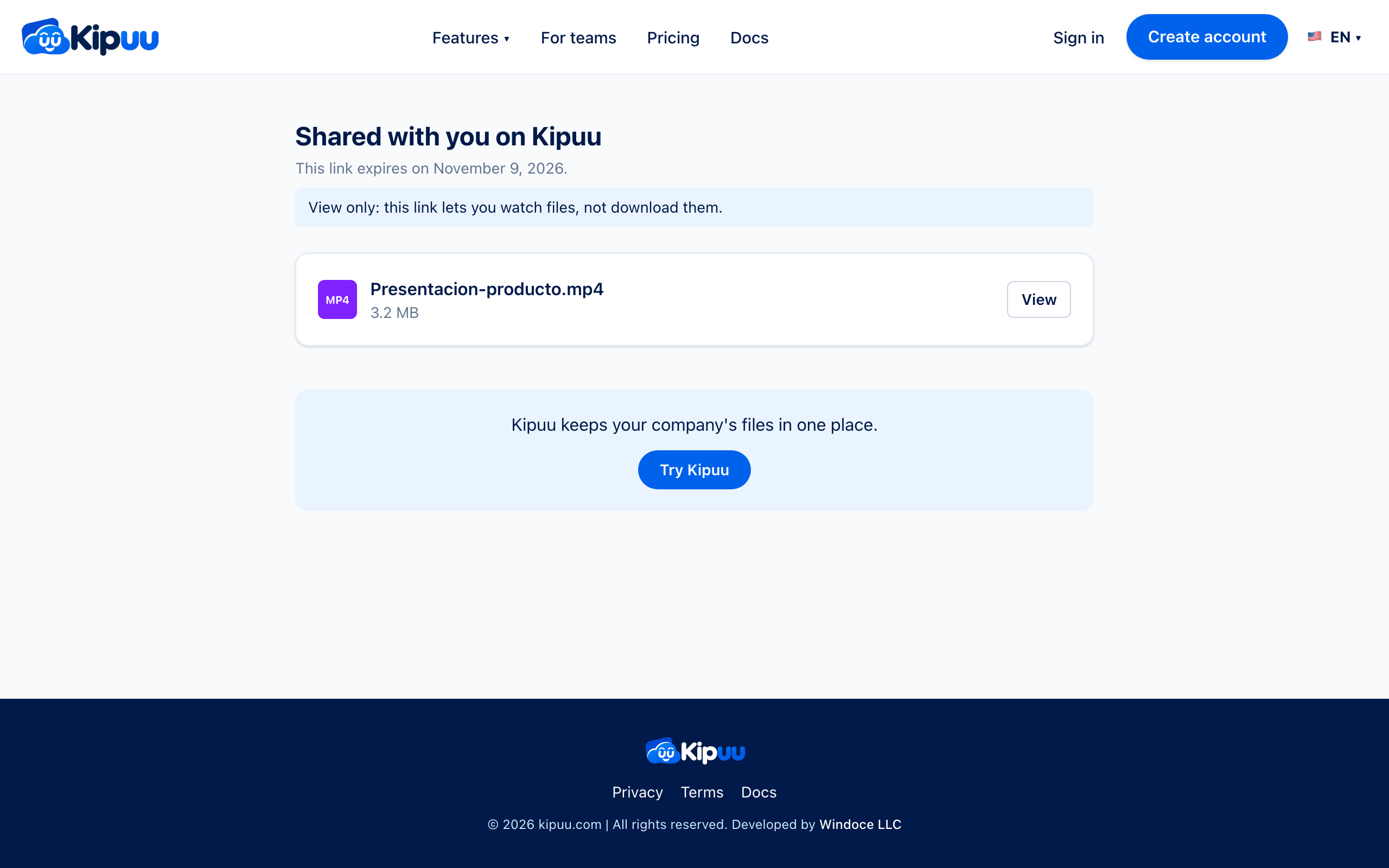
Made for video makers, musicians and anyone who sends work for approval. When you create a link, you can add a password and choose View only: your client watches and listens right in the browser, without an account and without being able to download.
- Open the three dots next to the file and choose Share link.
- Type a password (at least 6 characters) and check View only if you don't want it downloaded.
- Create the link and send it. Send the password separately, for example by phone.
Your client opens the link, types the password and sees the file with a View button. After several wrong passwords, the link pauses for a few minutes. In the Kipuu app on your phone, open the three dots on a file and choose Share a review link to send it from WhatsApp or email.