
Files and folders
Kipuu on iPhone and Android
Your company's files in your pocket: upload, move and share files, and back up your camera roll automatically.
Get the app
- On an Android phone or tablet, open Google Play and search for Kipuu, or tap Download at the top of kipuu.com and choose Kipuu for Android. Every download is also on kipuu.com/download.
- Tap Install. It's free to download.
- Open Kipuu and sign in with your work email and password, or create your account.
Kipuu for iPhone is coming soon to the App Store. Until then, iPhone users can use Kipuu on the web from Safari.
The Kipuu app uses the same account as the web. Sign in with your work email and password and you'll see the same folders and files as on your computer. Four tabs at the bottom take you everywhere: Files, Recent, Backup and Account.
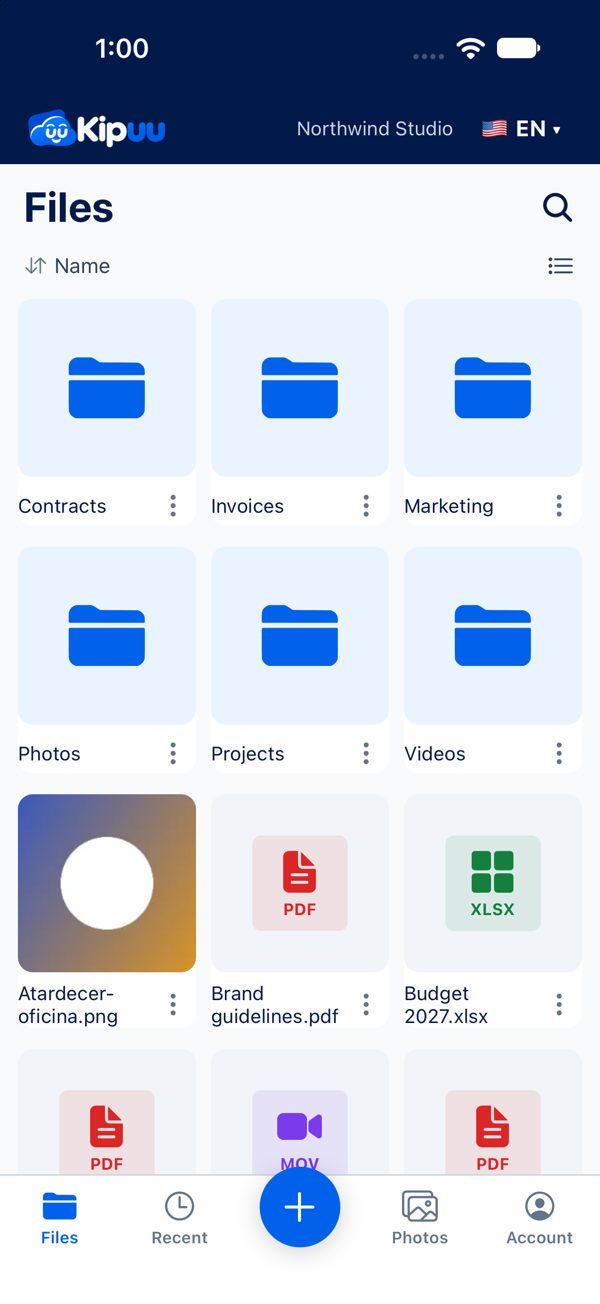
Files, your way
Switch between list and grid with the button at the top right, sort by name, date or size, and search across your company's files with the magnifying glass. The app remembers how you like it. Photos and videos show a preview, and tapping a file opens it right in the app.
Add anything with the + button
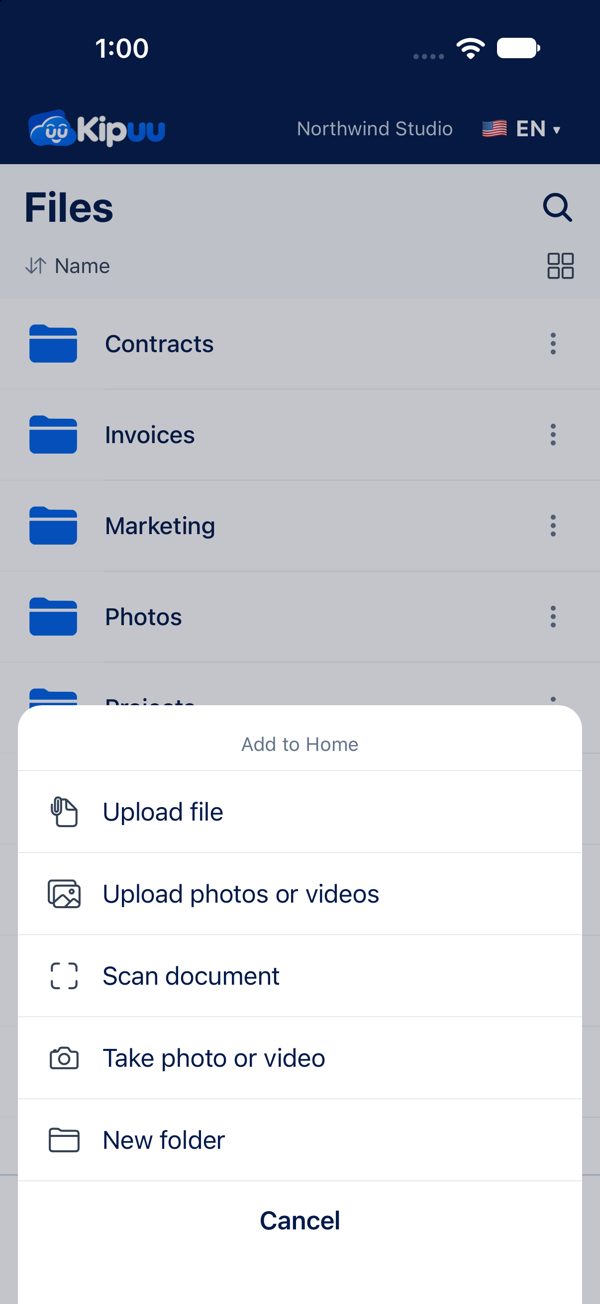
- Open the folder where it should go and tap the + button in the middle of the bottom bar.
- Choose Upload file, Upload photos or videos, Scan document, Take photo or video, or New folder.
- The upload bar above the tabs shows each file's progress and turns green when it's done. If one fails, it turns red with a Retry button.
Big files, like long videos, upload in several pieces at the same time, so they finish faster. If your connection drops halfway, tap Retry or choose the same file again in the same folder: Kipuu picks up where it left off instead of starting over, for up to six days.
Move, rename, share and favorites
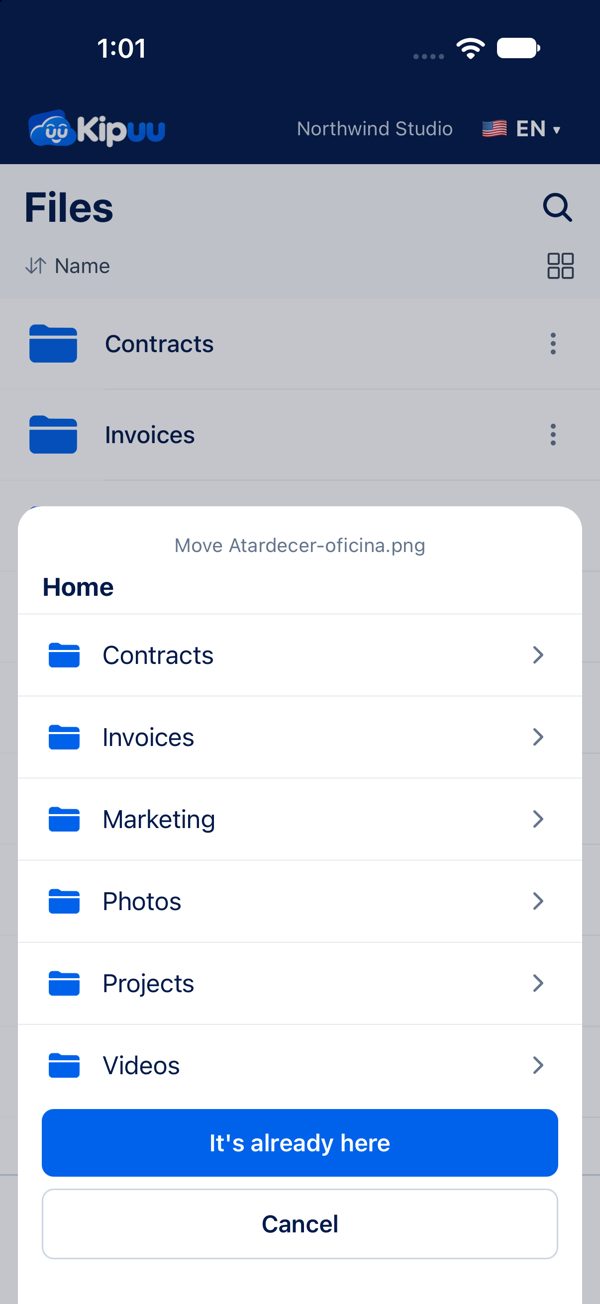
Every file and folder has a three-dot menu with Move, Rename, Share link, Add to Starred and Move to trash. To move something you can also press and hold it, then drop it on a folder, or on the back arrow to move it up one level. Your starred files and the latest files of your team are in the Recent tab. Anything you delete goes to the trash in Account, where you can restore it.
Back up your camera roll
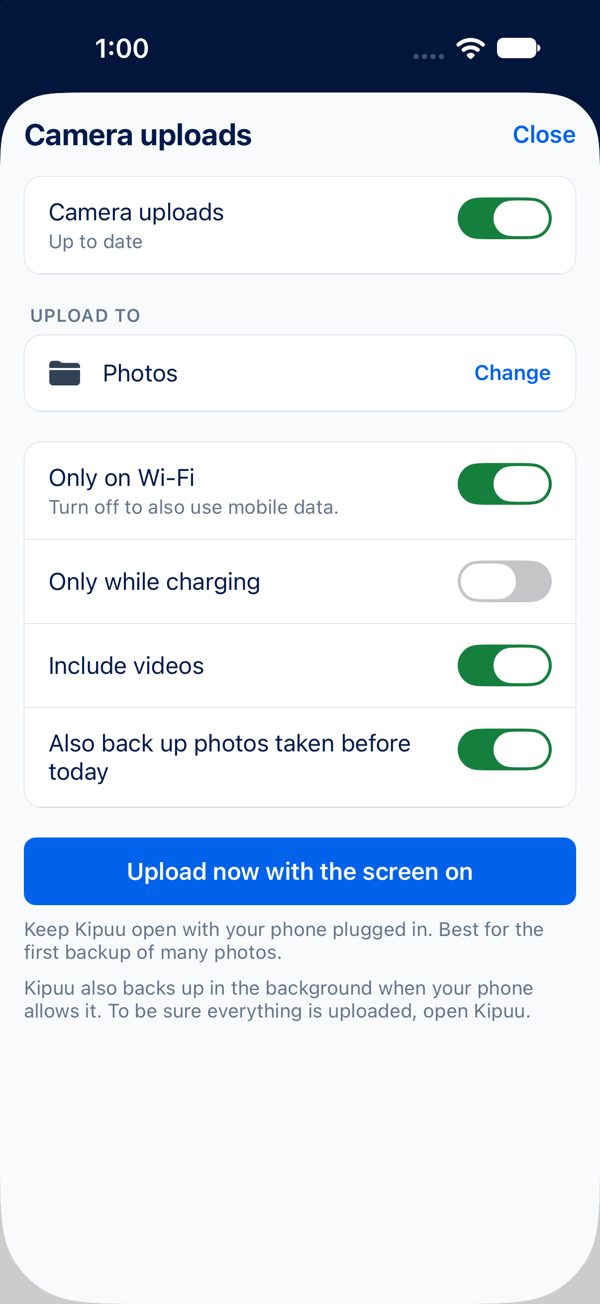
- Open the Backup tab and tap Turn on camera uploads.
- Allow access to your photos, choose the Kipuu folder where they go, and you're done. Kipuu backs up several photos at a time and picks up on its own after a pause.
Everything about camera uploads, step by step (what you see while it works, Wi-Fi only, pauses and retries), is in the guide Back up your phone's camera roll.
Save files from other apps
- In any app on your Android phone (Photos, Files, your email or WhatsApp), select one or more photos, videos or documents and tap Share.
- Choose Kipuu. If you aren't signed in, sign in first: your files wait for you.
- Pick the folder and tap Save here. The files upload with the same progress bar as always, and Kipuu opens that folder.
Kipuu saves files, photos and videos; text and links can't be saved. Saving from the iPhone share sheet is coming soon.
Open Kipuu files from other apps
- Sign in to the Kipuu app on your Android phone once. From then on, Kipuu shows up wherever Android lets you pick a file.
- In the Files app, or when another app asks you to choose a file (attach to an email, upload a form, open a document), open the side menu and tap Kipuu. If you belong to several companies, each one has its own entry.
- Browse your folders and tap the file. Kipuu downloads it securely and hands it to that app.
When you sign out, Kipuu disappears from the file picker. Opening Kipuu from the iPhone Files app is coming soon.
Save straight to Kipuu from other apps
- In any Android app that lets you save or export a file (a document editor, a scanner, a video or audio app, a browser download), choose Save as, Export or Save to device. In the Files app, select a file and choose Copy to or Move to.
- In the file picker, open the side menu and tap Kipuu. Go to the folder you want; you can also create a new folder right there.
- Type the name and tap Save. The file stays on your phone for a moment and uploads to Kipuu on its own, in parts if it's large. While it uploads, you already see it in the folder.
Saving over a file that's already in Kipuu, or saving with the name of a file that's already in that folder, adds it as a new version, so the previous one is kept. If you lose your connection, the file waits on your phone and uploads the next time you open Kipuu in the file picker. If a file can't upload (for example, your company reached its spending cap or you don't have permission for that folder), it stays in the folder with the reason below its name, and the Kipuu app tells you; save it again or remove it from its menu. You can save if your role is Editor, Administrator or Owner; Viewers can open files but not save them. When you sign out, anything that hadn't finished uploading is removed from the phone.
Your account and settings
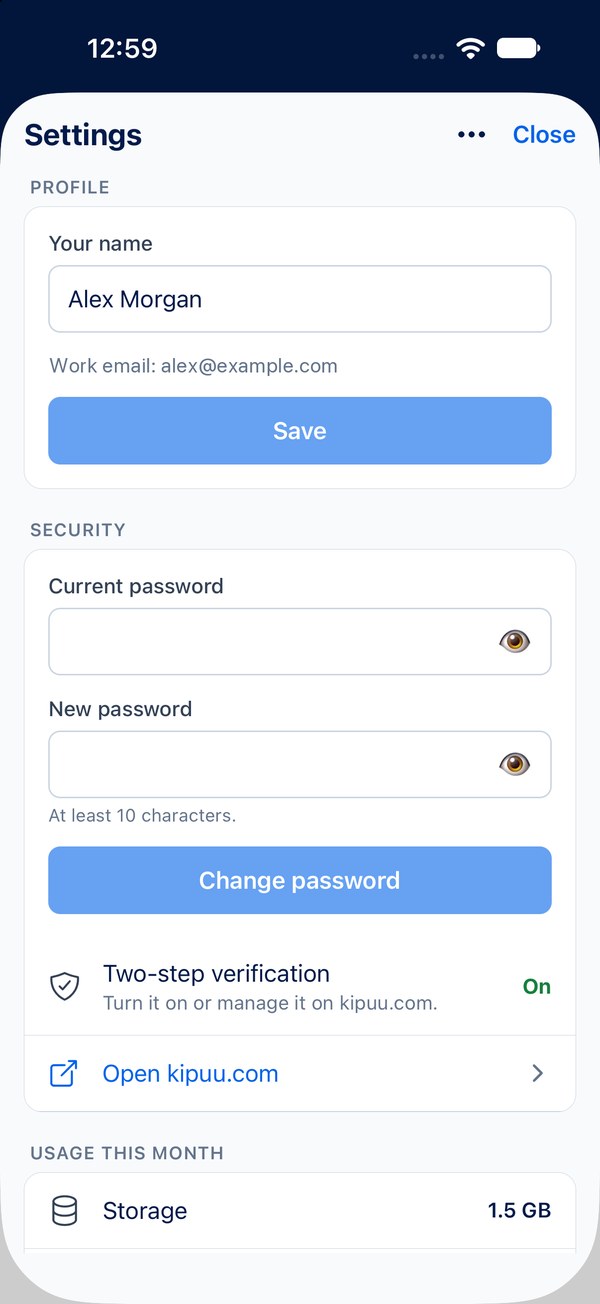
The Account tab shows your company, the space you use and the trash. The gear opens Settings: your name and password, two-step verification, this month's usage (for owners and administrators), language, upload notifications and help. Sign out ends your session for real, and Delete account is inside its three-dot menu.