Files and folders
Comments at the exact second of a video or song
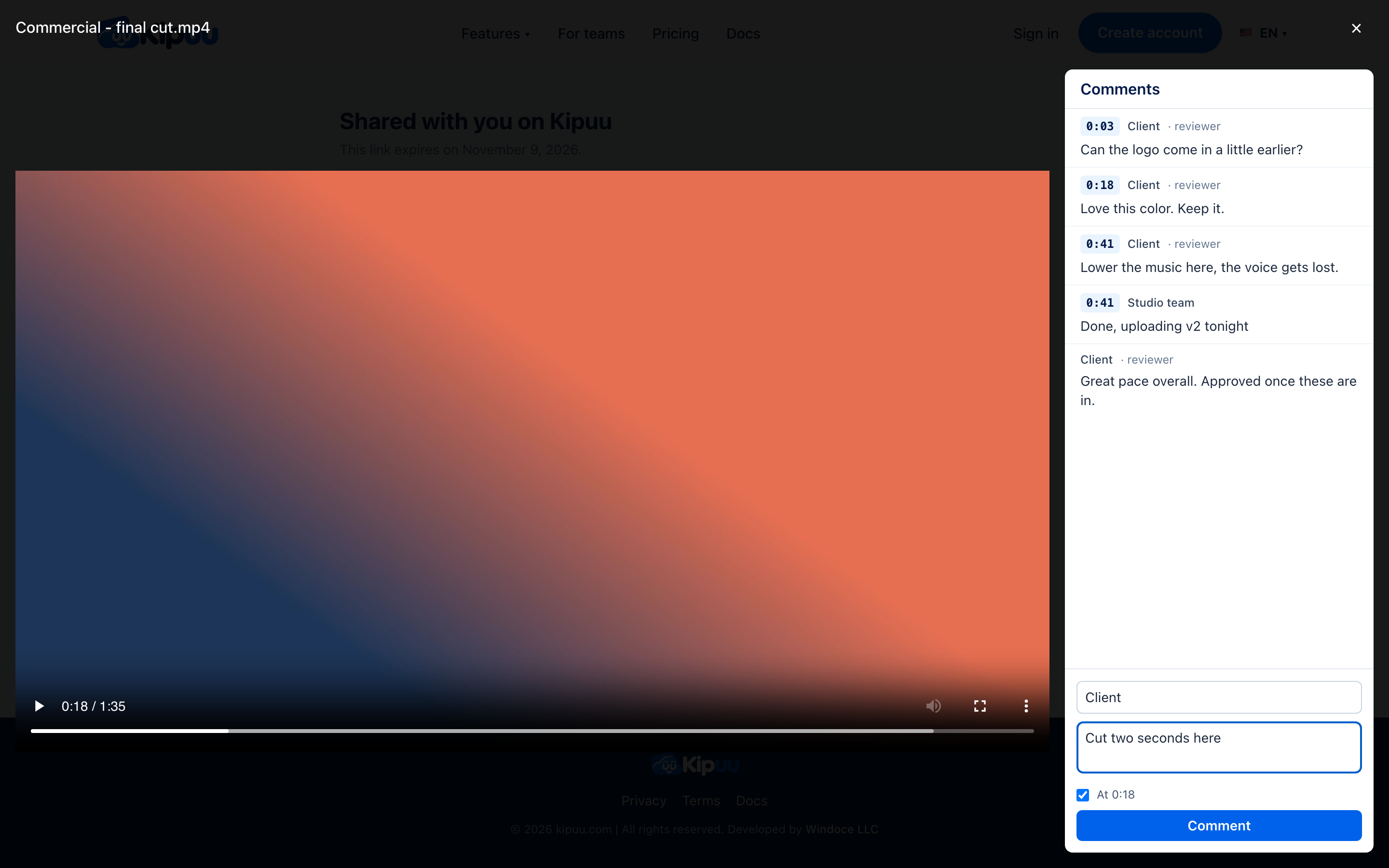
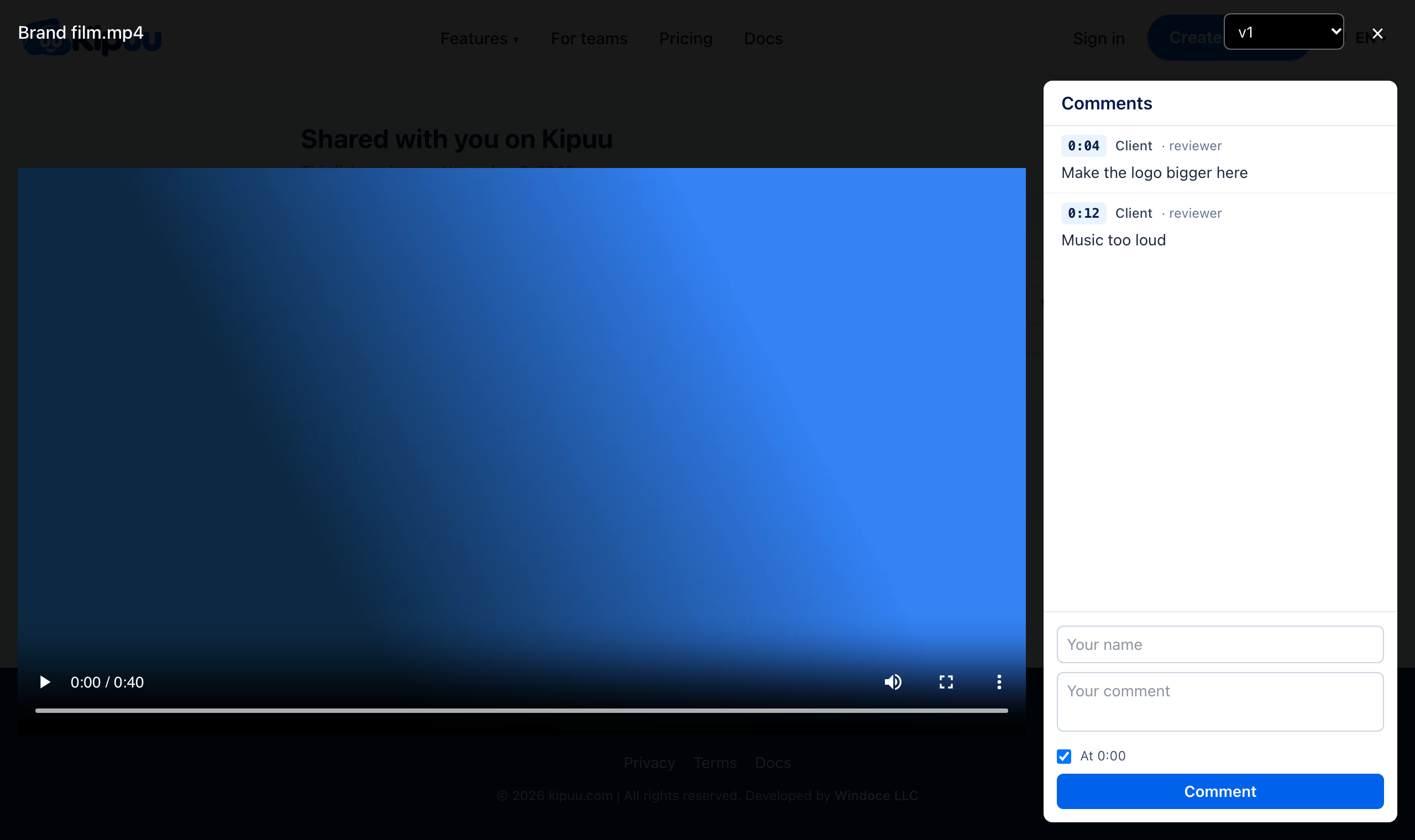
Your client pauses, writes, and the comment stays pinned to that moment. You tap it and the player jumps right there.
No more emails that say “around minute two, the part with the logo”. Every comment on a video or an audio file carries the exact time it refers to, so you and your client always talk about the same frame.
How your client comments
- Send a review link (see Share with a link). Your client doesn't need an account.
- Your client opens the video, writes their name once and clicks the comment box: the video pauses on its own.
- They write and tap Comment. Under the box they see the time it will be saved at, like “At 0:18”. Unchecking it posts a general comment with no time.
How you answer
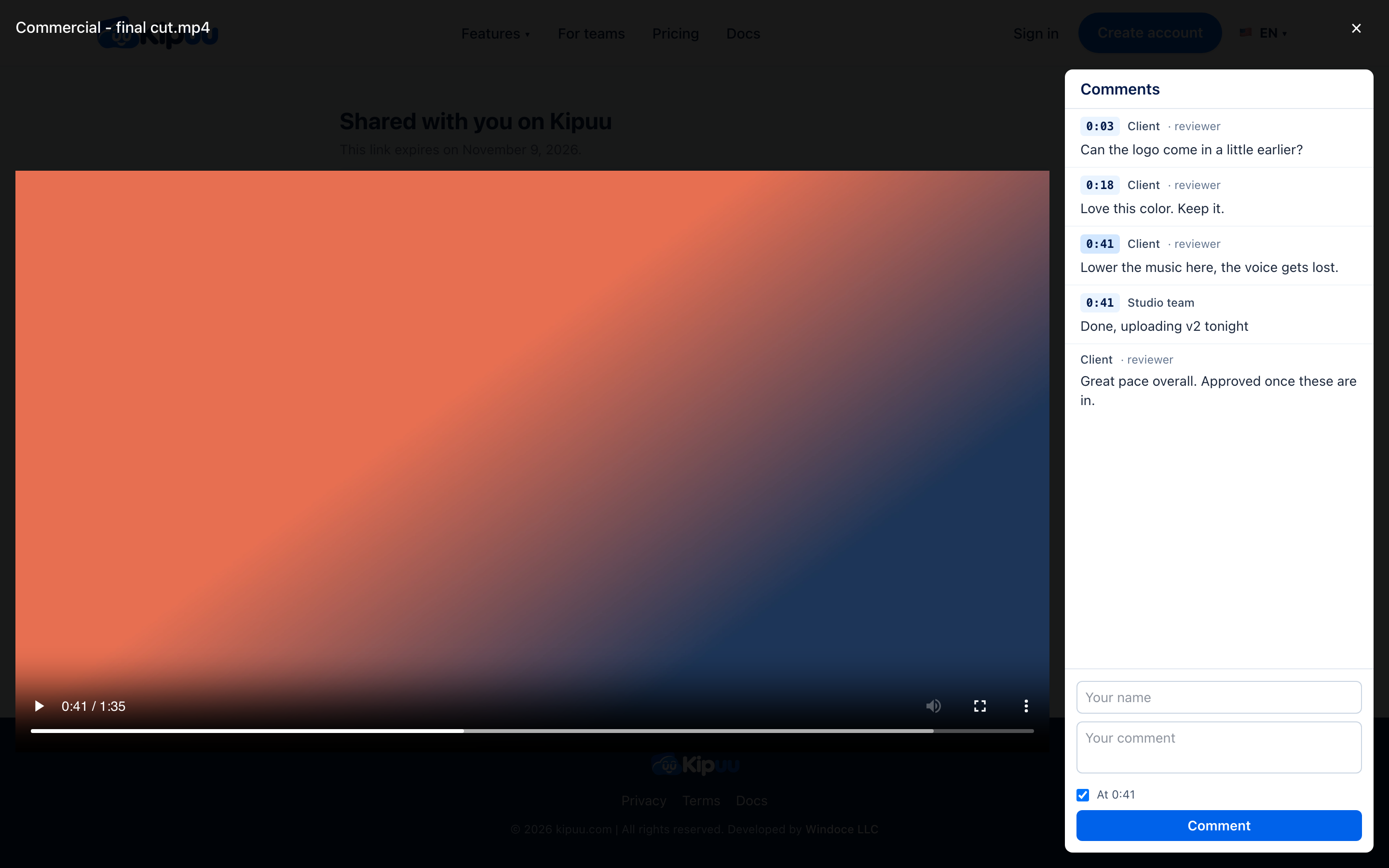
Open the same file inside Kipuu. The comments appear next to the player, ordered by time, with general comments at the end. Tap a time and the player jumps there and pauses. Your answer is saved at the moment you're watching, signed with your name.
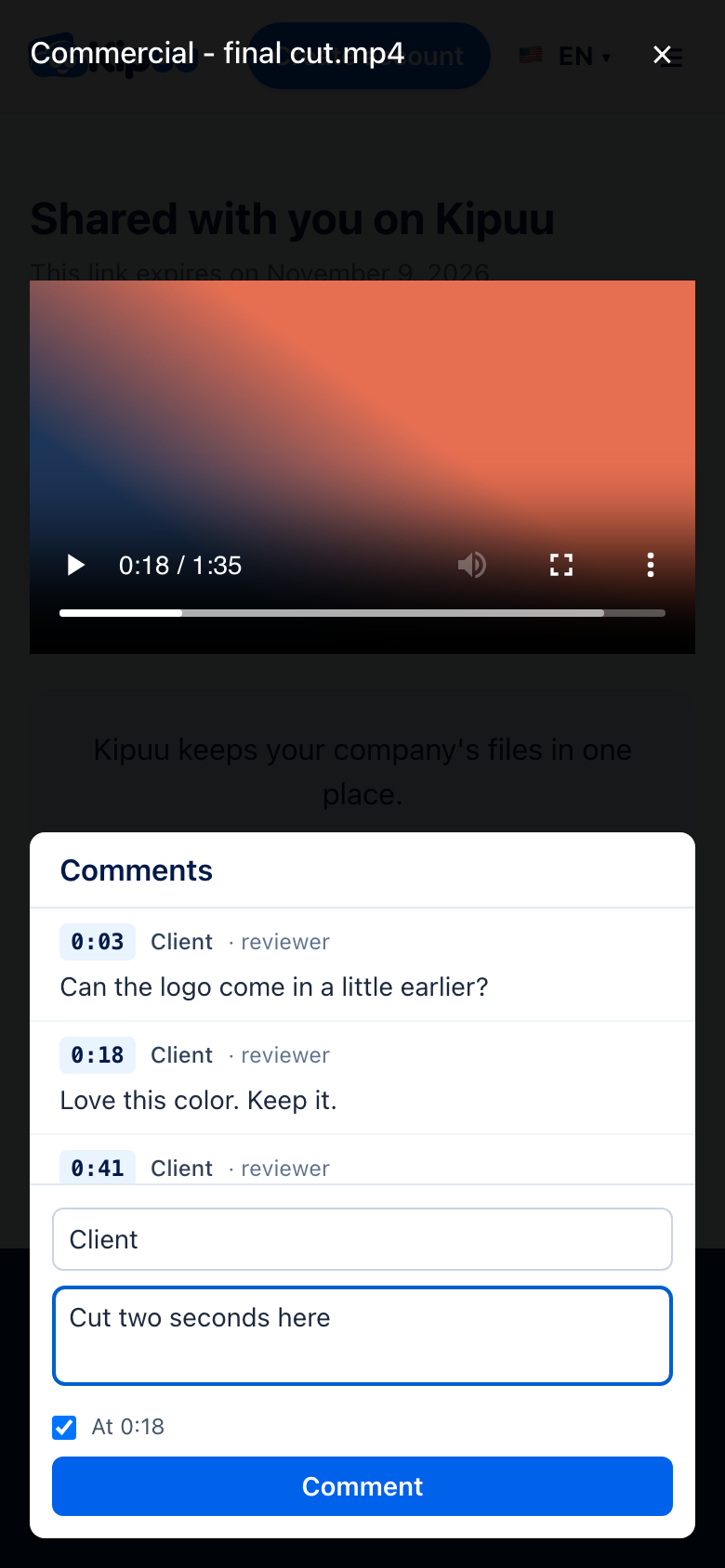
On a phone, the comments go under the video. If you close the window before posting, what you wrote is waiting for you when you open it again. Comments belong to the version that was being watched, so a new version starts clean.
Versions v1, v2, v3
When you upload a file with the same name in the same folder, it becomes the next version: v2, then v3. The review link always opens the newest one, and every version keeps its own comments, so feedback on the first cut never gets mixed with the final one.
- Open the video. If it has more than one version, a version picker shows up next to its name, marked “v3 · current”.
- Choose an older one, like v1. The player and the comments switch to that version.
- Anything you write is saved on the version you're watching. Download, when the link allows it, also gets that version.
Approve or request changes
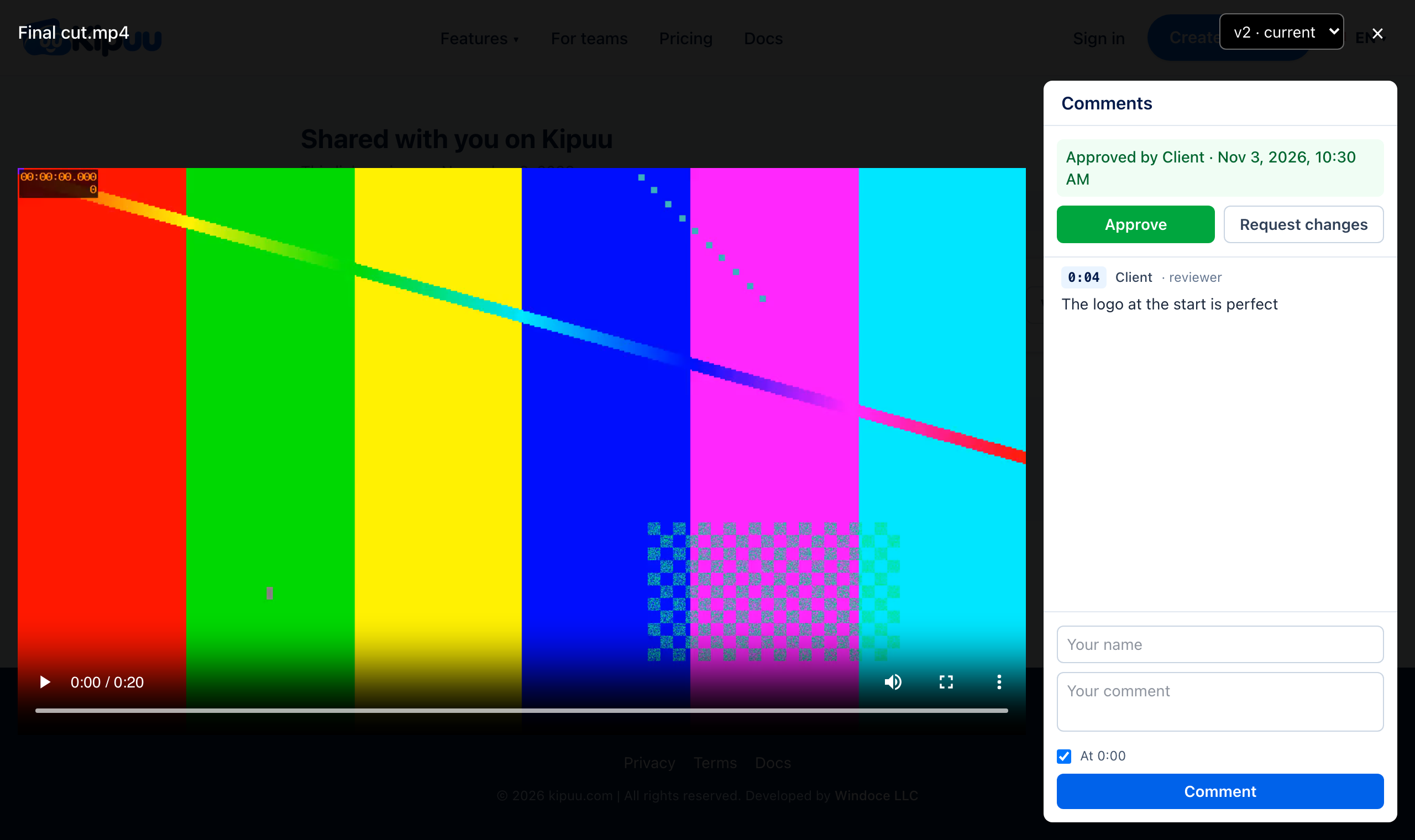
When the cut is ready, your client says so with one tap, right above the comments. Every decision carries the name of who made it and the date, so there is no doubt about which version was signed off.
- Your client opens the review link and writes their name, the same one they use to comment.
- To ask for something else, they tap Request changes, write what needs to change (optional) and send it.
- When everything is right, they tap Approve. The panel turns green: “Approved by” their name, with the date and time.
- You see the same status when you open the file in Kipuu. Anyone on your team who can edit files can approve or request changes too.
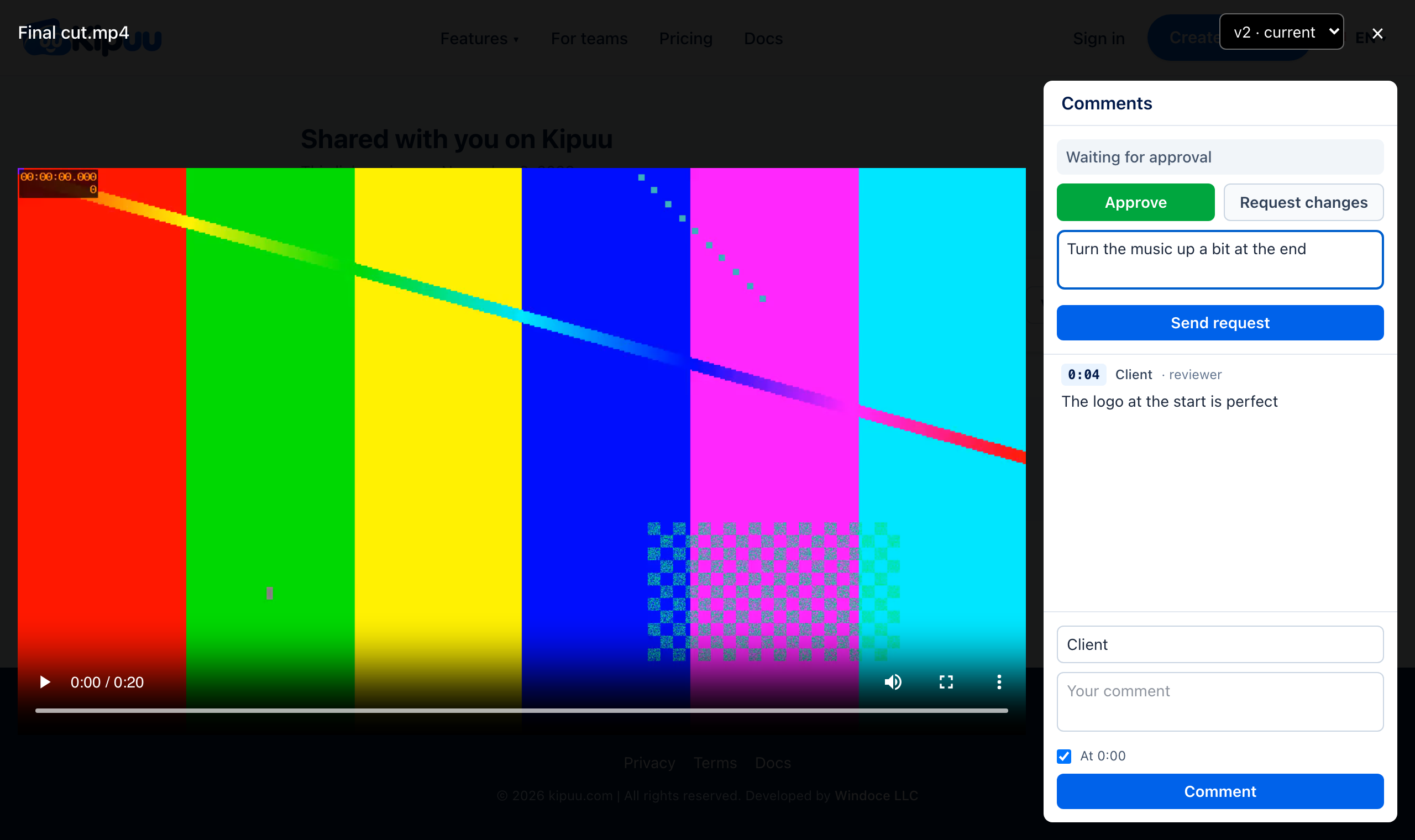
Each version has its own approval. When you upload v3, it starts as “Waiting for approval”, and the decision on v2 stays where it was.