
Getting started
Kipuu for Linux
Keep your company's files in a Kipuu folder on Ubuntu, Debian, Linux Mint, Fedora and other Linux computers, always in sync, and back up your Videos and Music on their own.
Kipuu for Linux creates a Kipuu folder in your Home folder with every file and folder of your company. Each file is kept as a full copy on your computer, so it opens instantly, even without internet. What you add, change, rename or delete there happens in Kipuu too, and what your team changes on the web, on their phones, on Windows or on Mac shows up in your folder within a minute.
It works on 64-bit computers with Ubuntu 22.04 or later, Debian 12 or later, Linux Mint 21 or later, Fedora 36 or later and most other distributions, with GNOME, KDE Plasma, Cinnamon, XFCE or MATE.
Which file to download
| Your Linux | Download |
|---|---|
| Ubuntu, Debian, Linux Mint, Pop!_OS, elementary OS, Zorin OS | The .deb package |
| Fedora, openSUSE, Arch, Manjaro or any other | The AppImage (one file, nothing to install) |
Install it
- On your Linux computer, open kipuu.com, click Download at the top and choose Kipuu for Linux. Pick the .deb package or the AppImage, as shown in the table above.
- With the .deb package: open the file you downloaded. Your software center (Ubuntu Software, Software Manager on Mint) opens; click Install and type your computer's password. If you prefer the terminal, run sudo apt install ./ followed by the file name, from your Downloads folder.
- With the AppImage: right-click the file, choose Properties and turn on Allow executing file as program (in KDE: Is executable). Then double-click it. Kipuu adds itself to your applications menu, so next time you open it from there.
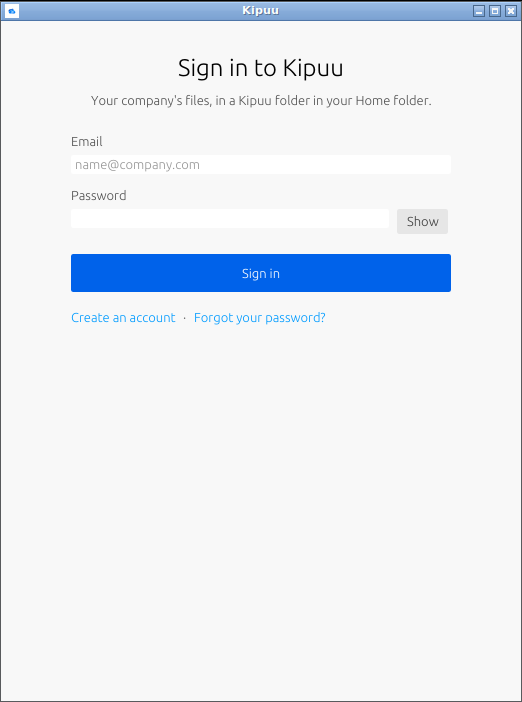
- Open Kipuu from your applications menu and sign in with your Kipuu email and password. To check the password before you continue, click Show. If your account uses two-step verification, Kipuu asks for the code.
What happens after you sign in
- The Kipuu folder appears in your Home folder and in the sidebar of your file manager (Files, Dolphin, Nemo, Caja or Thunar), with the Kipuu icon. The first time, Kipuu downloads your company's files into it.
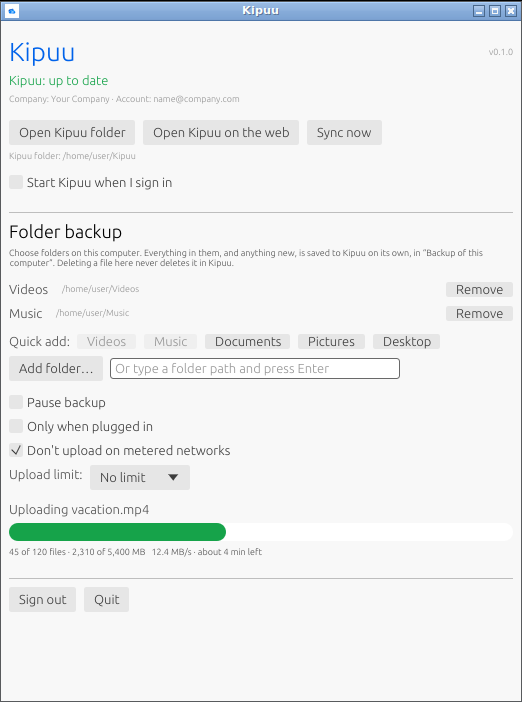
- Kipuu starts on its own every time you sign in to your computer, and keeps working in the background. You can turn that off in the Kipuu window.
- On desktops with a system tray (KDE, Cinnamon, XFCE, MATE and Ubuntu), Kipuu shows its icon there with the sync status and a menu. On GNOME without a tray, open Kipuu from the applications menu to see its window: Kipuu keeps syncing either way.
Working in your Kipuu folder
- Add a file or a folder: it uploads to the same place in Kipuu. Your team sees it on the web, on their phones, on Windows and on Mac.
- Edit a file and save it: Kipuu uploads it as a new version. The earlier versions stay in Kipuu.
- Rename or move a file or a folder: it's renamed or moved in Kipuu too, without uploading it again.
- Delete a file: it goes to the Kipuu trash, where you can restore it from kipuu.com.
Back up your Videos and Music
In the Kipuu window, under Folder backup, use a quick-add button (Videos, Music, Documents, Pictures or Desktop) or Add folder to choose any folder. Everything in them, and anything new, uploads on its own to Backup of followed by your computer's name. You can pause it, upload only when the computer is plugged in, skip metered connections and set an upload limit. Deleting a file on your computer never deletes it from the backup. The backup stays in Kipuu, where you see it on the web: it isn't downloaded again into your Kipuu folder, so it doesn't take up your disk twice.
Common questions on Linux
What if the same file changes on my computer and somewhere else at the same time?
Nothing is lost. Kipuu keeps both: the newest version from Kipuu keeps the name, and yours is saved next to it with conflicted copy in the name, and uploads too.
Do the files take up space on my computer?
Yes. On Linux the Kipuu folder keeps a full copy of your company's files, so they open without waiting and work offline. Make sure your disk has room for them.
What happens if I sign out or uninstall Kipuu?
Your files stay in your Kipuu folder and everything stays in Kipuu. If someone signs in later with an account from another company, Kipuu moves the old folder aside, so the files of two companies never mix. To uninstall, remove Kipuu from your software center, or delete the AppImage file.
Does it work on ARM computers like a Raspberry Pi?
Not yet. Today Kipuu for Linux is for 64-bit Intel and AMD computers. On any other computer you can use Kipuu on the web.