
Getting started
Kipuu for Windows
Get your company's files as a folder in File Explorer. Files download only when you open them, so they don't fill up your PC.
Kipuu for Windows adds a Kipuu folder to the left side of File Explorer, next to your other drives. You see every file and folder of your company with its name and size, and each file downloads the moment you open it. It works on Windows 10 and Windows 11.
Install it and turn it on, step by step
It takes about two minutes. Follow the red numbers in each picture: each one marks exactly where to click.
Step 1
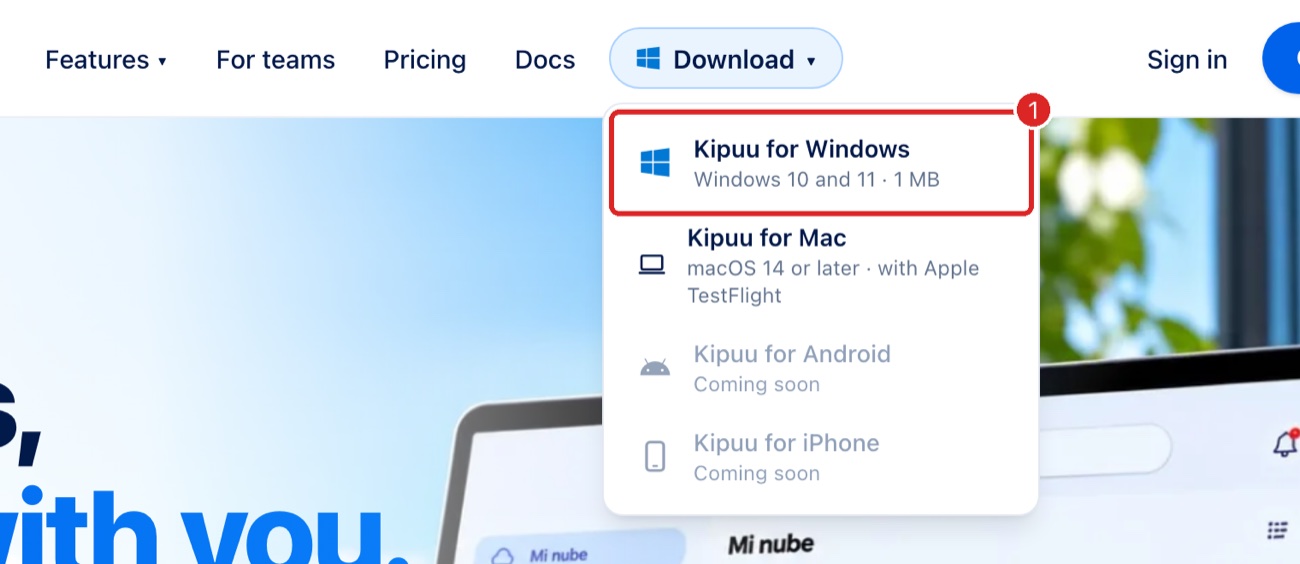
On your Windows PC, open kipuu.com, click Download at the top and choose Kipuu for Windows. The installer downloads to your Downloads folder.
Step 2
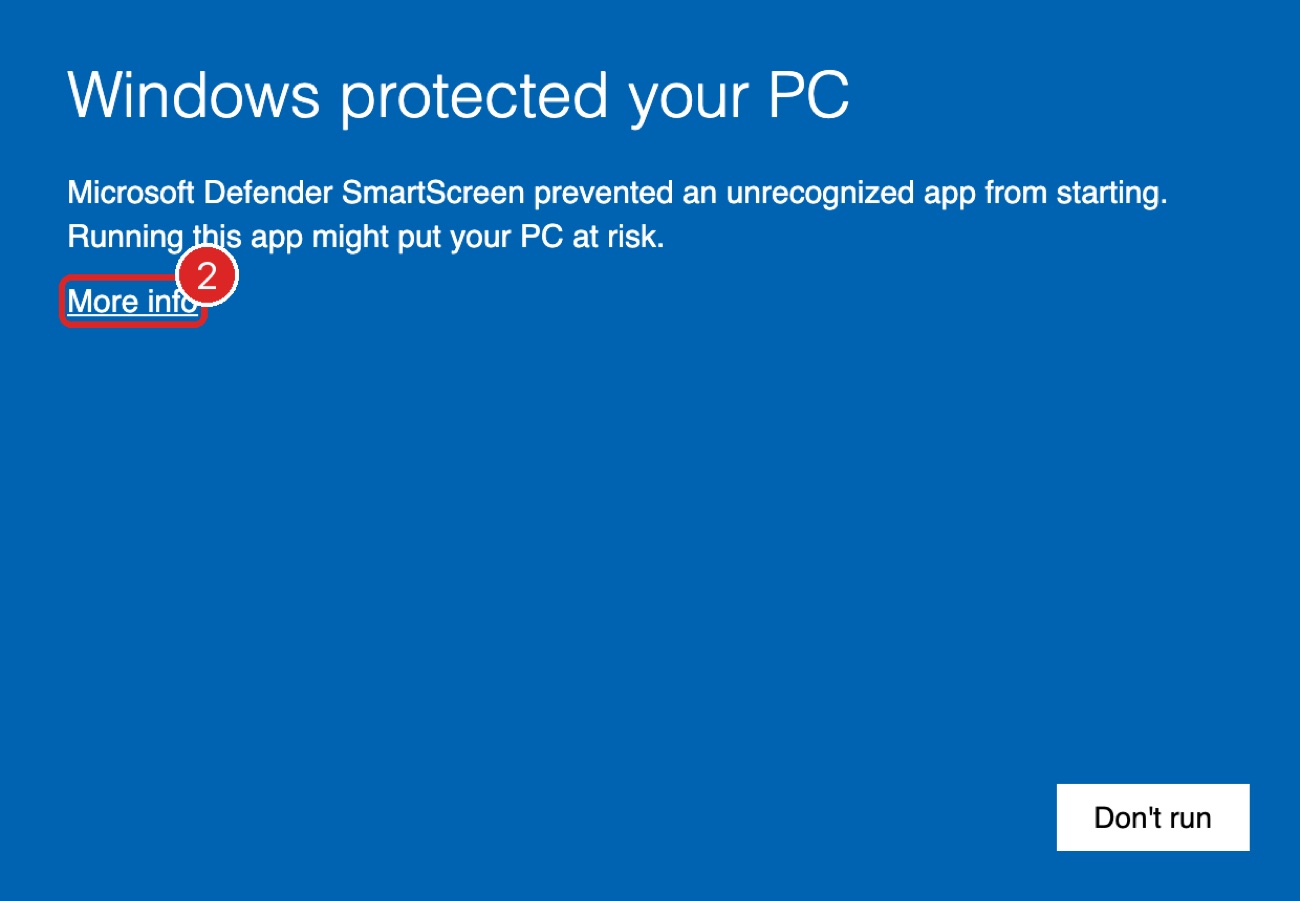
Open the file you downloaded. If Windows shows a blue or pink screen that says Windows protected your PC, it's the normal notice for new apps, not a virus. Click More info. Don't click Don't run.
Step 3
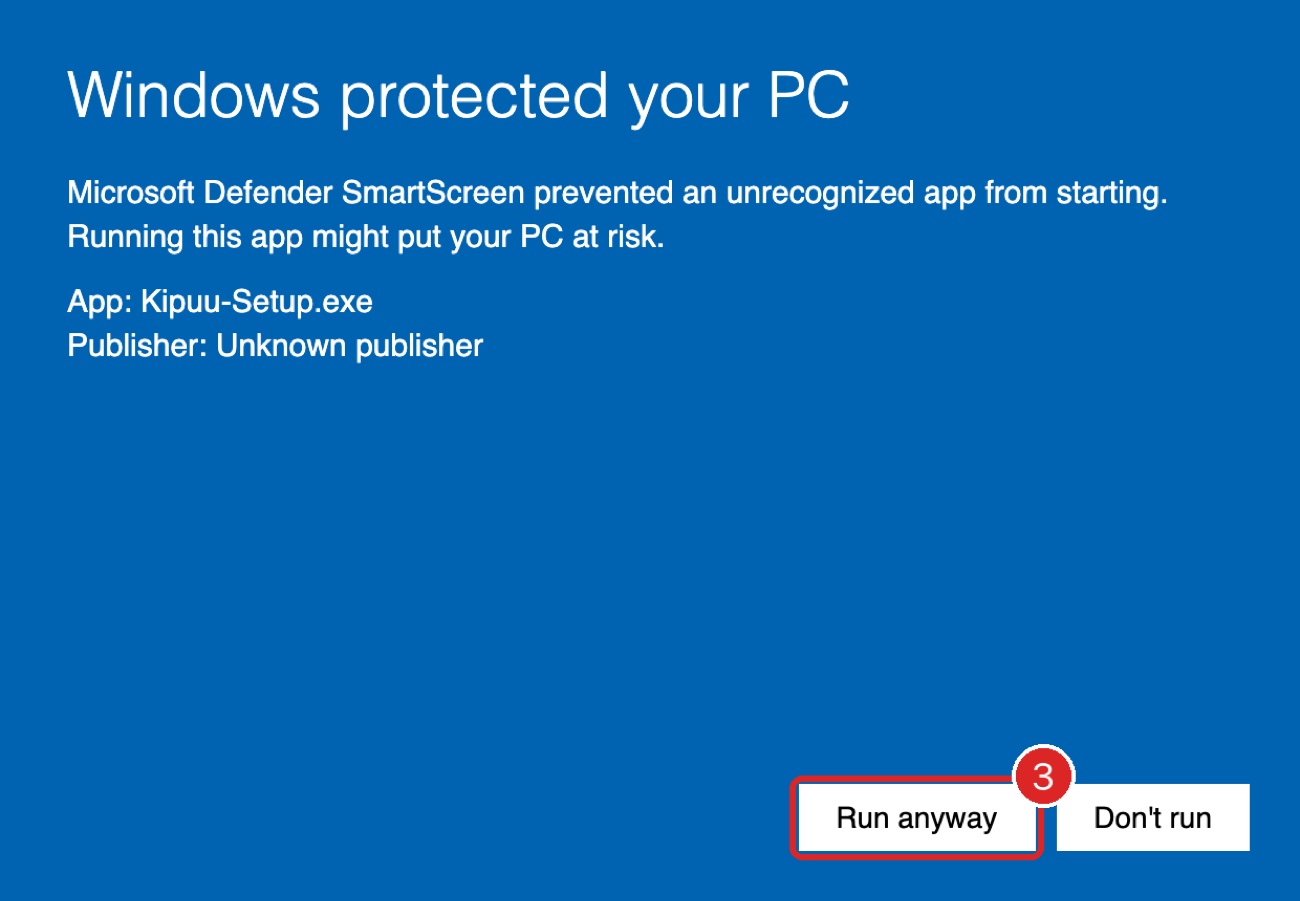
A new button appears. Click Run anyway. You don't need to be an administrator.
Step 4
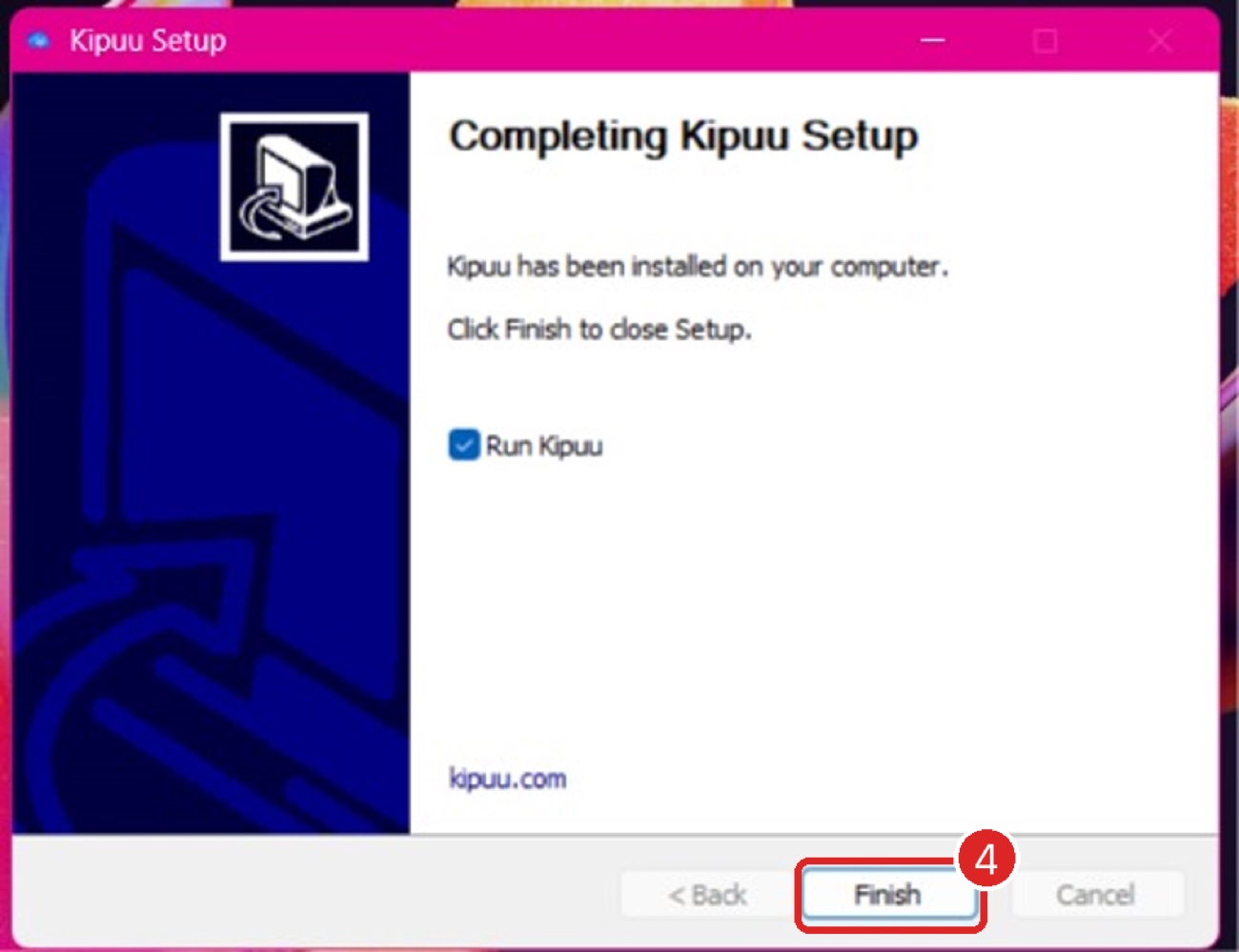
The installer finishes by itself. Leave Run Kipuu checked and click Finish.
Step 5
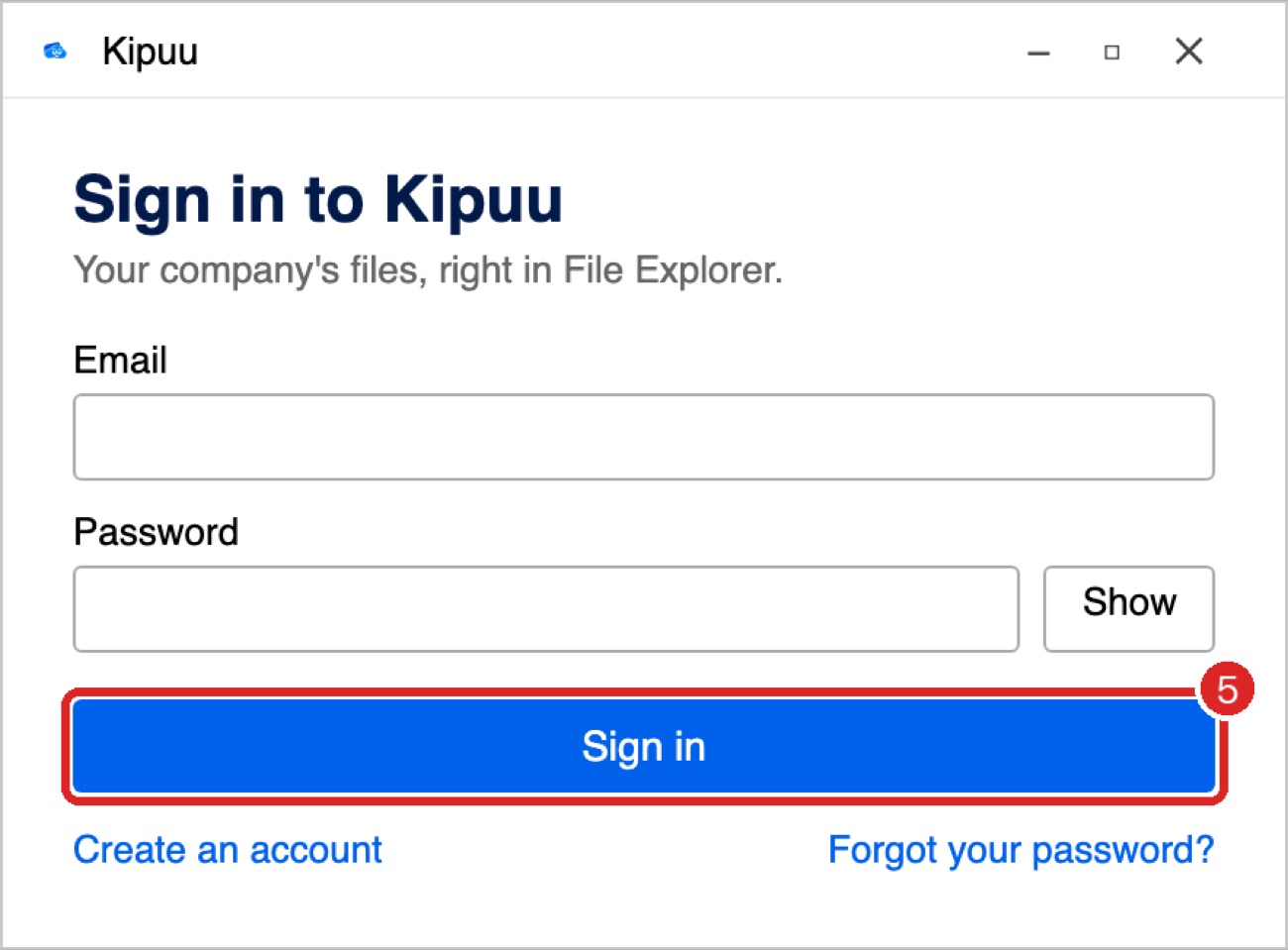
The Kipuu window opens. Type your Kipuu email and password and click Sign in. If your account uses two-step verification, it asks for your code. If you don't have an account yet, click Create an account.
Step 6
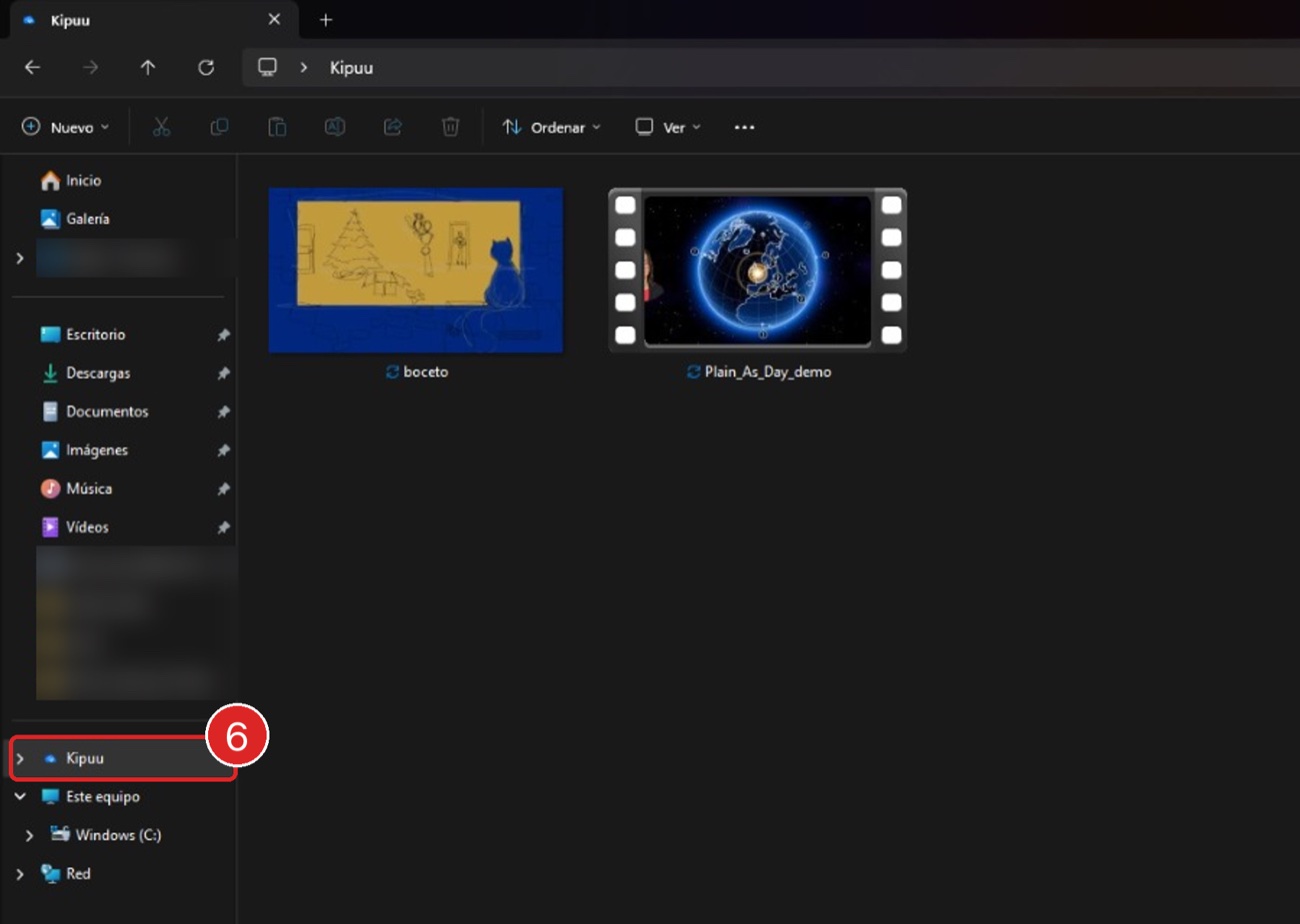
Done: Kipuu appears on the left side of File Explorer, with your company's files. Windows doesn't ask for any other permission.
Step 7
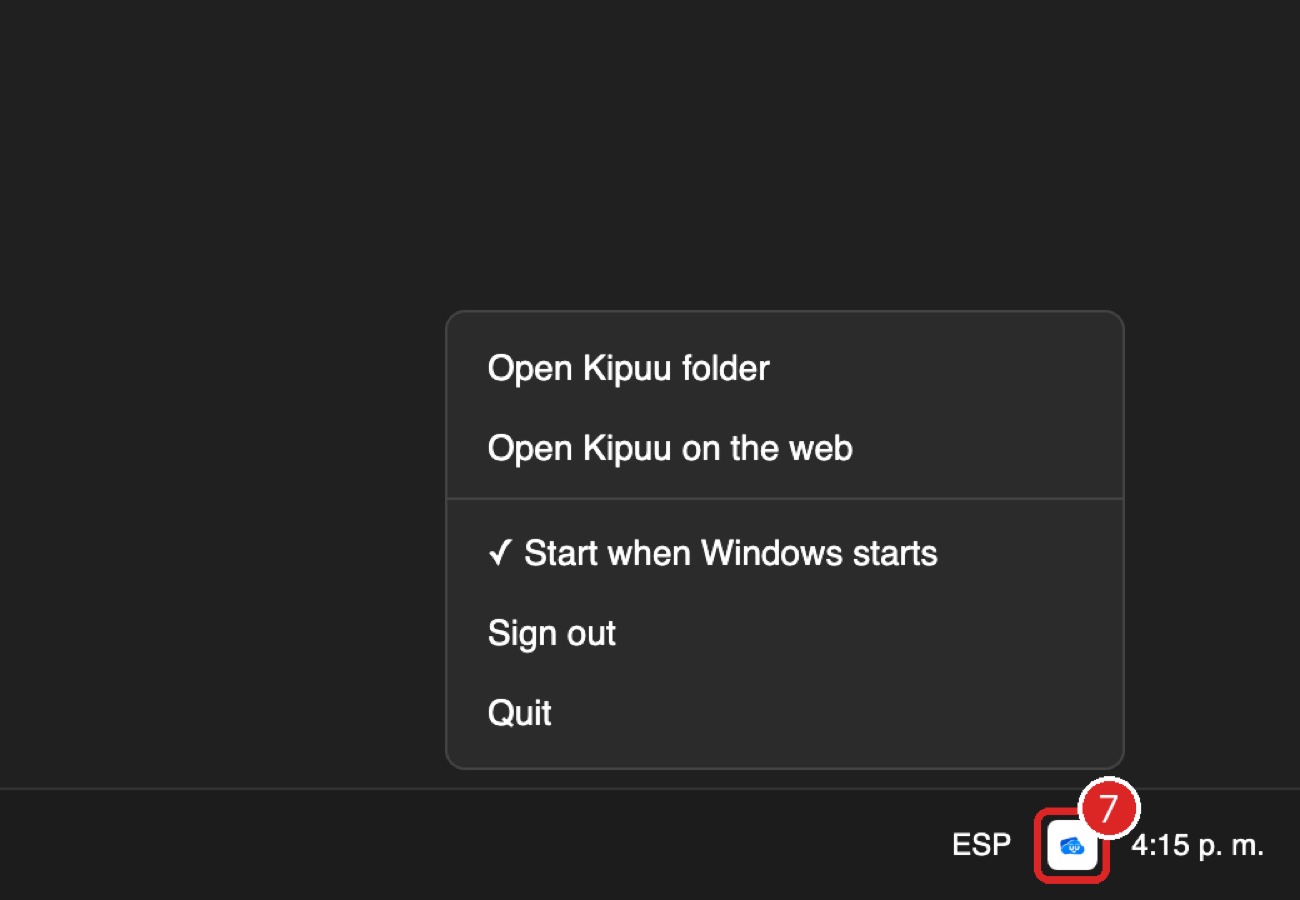
Kipuu also shows an icon next to the clock. Click it to open your folder; right-click it for the menu: open Kipuu on the web, start with Windows, sign out or quit. If you don't see it, click the small arrow next to the clock.
Work in the folder
- Open a file: it downloads and opens like any other file on your PC.
- Add a file: copy or drag it into a Kipuu folder. In about a minute your team sees it on the web and on their phones.
- Large files, like long videos, upload in pieces, several at a time. If the internet drops or you turn off your PC, Kipuu picks up where it left off the next time it connects, without starting over.
- Rename a file or folder: the new name is saved in Kipuu right away, for everyone.
- Delete a file or folder: it goes to the Kipuu trash, where you can restore it from the web.
- To keep a file on your PC even without internet, right-click it and choose Always keep on this device. To make room again, choose Free up space.
Drag a file to another Kipuu folder and it moves in Kipuu too. If a change can't be saved, for example without internet, File Explorer keeps the file as it was and the Kipuu icon next to the clock tells you why, so nothing changes without you knowing.
The icon next to the clock
Hover over it to see whether Kipuu is up to date or syncing, whether your PC has no internet, or whether Kipuu isn't responding (your internet works and Kipuu retries on its own). Click it to open your Kipuu folder. Right-click it to open Kipuu on the web, turn off starting with Windows, sign out or quit.
To uninstall, go to Settings, then Apps, and remove Kipuu. The files you kept on your PC stay in your folder, and everything in Kipuu stays in Kipuu.
Common questions on Windows
- Where do I give the permission? Windows doesn't ask for one: Kipuu adds itself to File Explorer when you sign in. The only notice is the protection screen when installing (More info, then Run anyway).
- I don't see Kipuu in File Explorer. Check that the Kipuu icon is next to the clock and that you're signed in. Close every File Explorer window and open a new one. If it still doesn't show, restart the PC.
- A file takes a while to open. That's normal the first time: each file downloads when you open it, so a long video takes longer. After that it opens instantly. Right-click and choose Always keep on this device to have it ready, or Free up space to make room again.
Can Kipuu back up my PC's folders on its own?
Yes. Right-click the Kipuu icon next to the clock and choose Folder backup. Choose Documents, Pictures, Desktop, any folder or a whole drive, and everything new uploads by itself. The guide Back up your computer's folders explains it step by step.