
Files and folders
Trash and version history
Nothing is deleted by accident: deleted items go to the trash, and every upload keeps its earlier versions.
Move something to the trash
- Open the three-dot menu next to the file or folder.
- Choose Move to trash.
- Confirm with Yes, move to trash.
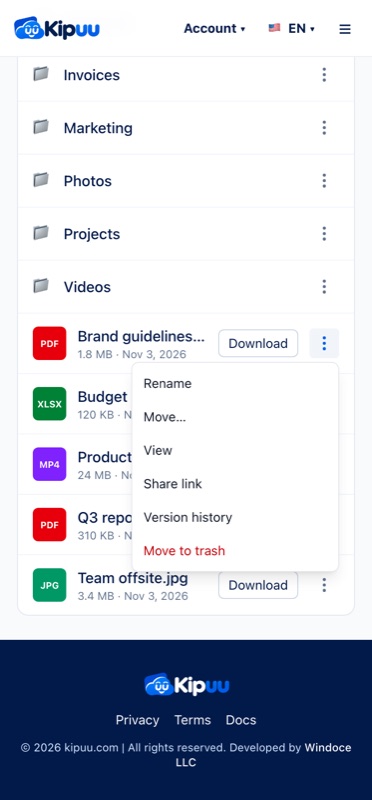
Moving a folder to the trash also hides everything inside it. Delete is always inside the menu, never as a loose button, so it can't be tapped by mistake.
Restore from the trash
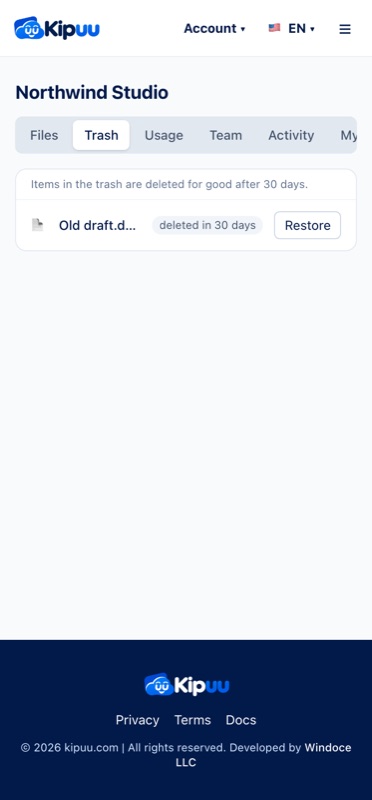
Open Trash and choose Restore. The item goes back exactly where it was. If something with the same name is there now, rename one of them first.
Things stay in the trash for 30 days, and each one shows how many days it has left. After that, Kipuu deletes them for good, together with everything inside a deleted folder.
Empty the trash
If you don't want to wait 30 days, owners and administrators can empty the trash on the web. Everything in it is deleted for good right away, including everything inside the deleted folders.
- Open Trash.
- Open the three-dot menu at the top of the list.
- Choose Empty trash.
- Read how many items will be deleted and confirm with Delete forever.
This can't be undone: once the trash is empty, nothing in it can be restored. As soon as it's empty, those files stop counting toward the space your company uses. If something lands in the trash while you are emptying it, it stays there until you look at it. A very large trash takes a few moments; keep the window open until it says the trash is empty. The emptying shows up in Activity.
Version history
When you upload a file with the same name as one already in the folder, Kipuu keeps the previous one as an earlier version. Open the three-dot menu and choose Version history to see every version numbered v1, v2, v3, who uploaded it and when. Tap Download next to any of them to get that exact version.