
Files and folders
Back up your computer's folders
Choose folders or a whole drive on your Mac, Windows PC or Linux computer. Everything in them, and anything new, is saved to Kipuu on its own, like camera uploads on your phone.
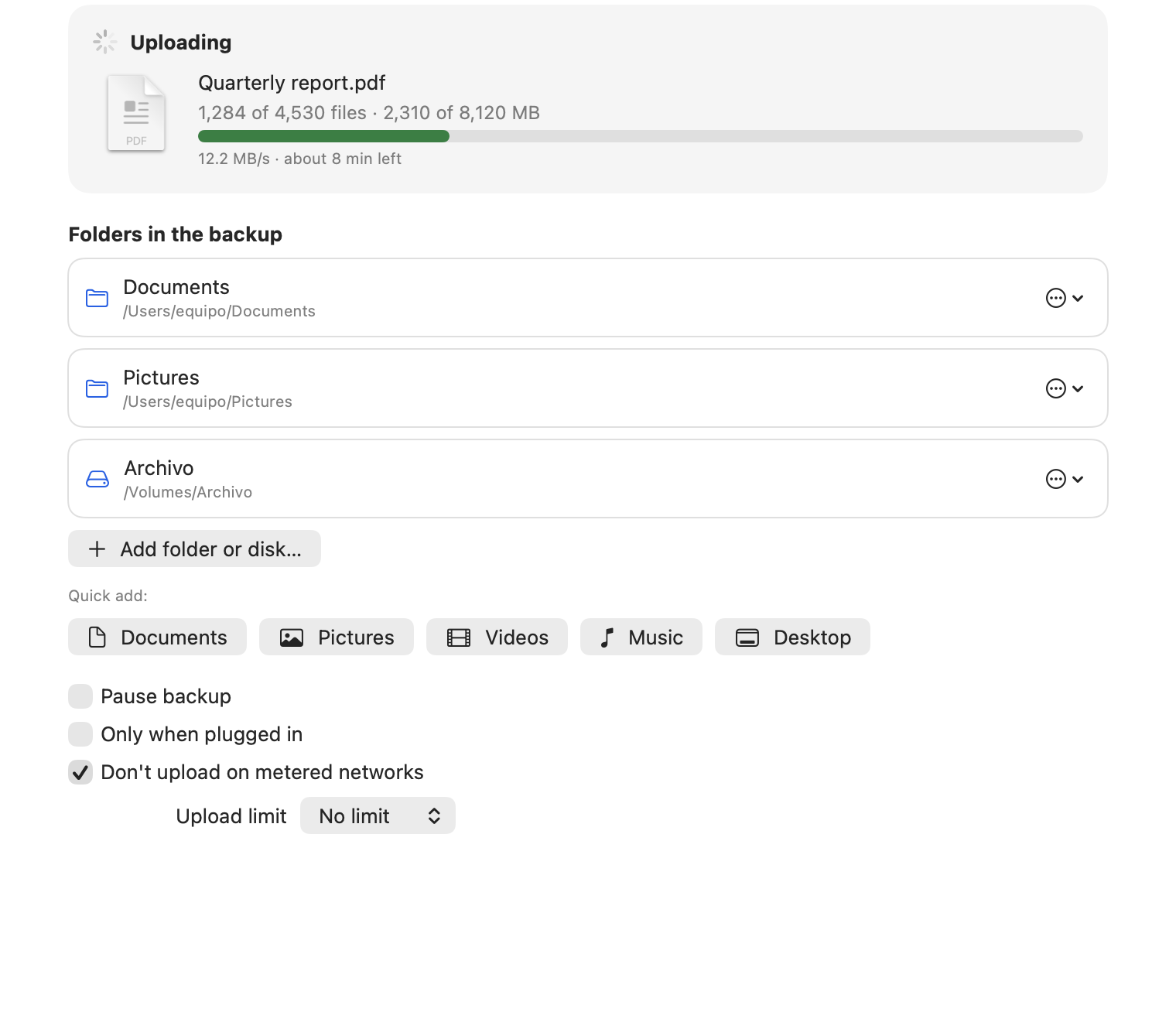
Folder backup keeps a copy of the folders you choose in Kipuu: Documents, Pictures, Videos, Music, Desktop, any other folder, or an entire external drive. You choose them once. From then on, every new or changed file uploads by itself while Kipuu is open, with no need to drag anything.
Turn it on
- On a Mac, open the Kipuu app and choose Folder backup in the sidebar. On Windows, right-click the Kipuu icon next to the clock and choose Folder backup. On Linux, open Kipuu from your applications menu: Folder backup is in its window.
- Use a quick-add button (Documents, Pictures, Videos, Music or Desktop), or choose Add folder to pick any folder or drive. You can choose several.
- That's it. Kipuu checks the folders and starts uploading. In Kipuu, the copy lives in a folder called Backup of followed by your computer's name, with the same folders inside.
What you see while it works
The progress card shows the file that is uploading right now with its thumbnail, how many files and megabytes are done out of the total, a green bar, and the speed. After the first 30 files Kipuu also tells you about how much time is left; before that it only shows the speed, so the estimate is honest. When everything is in Kipuu, it says Up to date.
The first big upload
The first time, Kipuu uploads everything in the folders you chose. It goes folder by folder and smaller files first, so you see progress right away. If you close Kipuu, restart or shut down your computer, it picks up where it left off the next time Kipuu opens, without uploading again what is already there. Large videos continue from the last piece that arrived.
Pause, power and metered networks
| Option | What it does |
|---|---|
| Pause backup | Stops uploading until you turn it off. Nothing is lost. |
| Only when plugged in | On a laptop running on battery, waits until it is plugged in. |
| Don't upload on metered networks | Waits while you are on a metered connection, such as your phone's hotspot. It is on by default. |
| Upload limit | Caps the upload speed so your internet stays fast for everything else. |
What is not copied
Kipuu skips temporary files and system files: hidden files, Office lock files that start with ~$, unfinished downloads, Thumbs.db and desktop.ini, and folders like node_modules. If you back up the drive your computer starts from, it copies your data, not the operating system or the programs; an external or second drive is copied in full. Your Kipuu folder in Finder or File Explorer is never copied into itself.
A file that is still being saved waits a couple of minutes before it uploads, so Kipuu never copies it half-written. A file that changes all the time, like an open database, uploads at most one new version per hour. If a file can't be read or upload fails, Kipuu tries again later: after 10 minutes, then after an hour, then once a day.
If I delete a file on my computer, is it deleted in Kipuu?
No. Folder backup is a backup: deleting or renaming a file on your computer never deletes it in Kipuu. If you change a file, Kipuu saves the new version and keeps the earlier ones, which you can see in the file's versions.
Does it count toward my storage?
Yes. What you back up uses your company's storage like any other file. If your plan is full, the backup pauses and tells you so; nothing already in Kipuu is touched.
How do I stop backing up a folder?
On a Mac, open the three-dot menu next to the folder and choose Remove from backup. On Windows, select it in the list and choose Remove. What was already copied stays in Kipuu.