
Files and folders
Folders, uploads and downloads
Organize files in folders, upload by dragging them in, and download them with one click.
Create a folder
- Go to Files and open the folder where you want the new one.
- Select New folder, type a name and choose Create.
The path at the top shows where you are. Select any part of it to go back up.
Upload files
Select Upload files and pick one or more files, or drag them straight onto the list. Each file shows its own progress bar, which turns green when the upload finishes. Files go straight to secure storage, so large files upload at full speed.
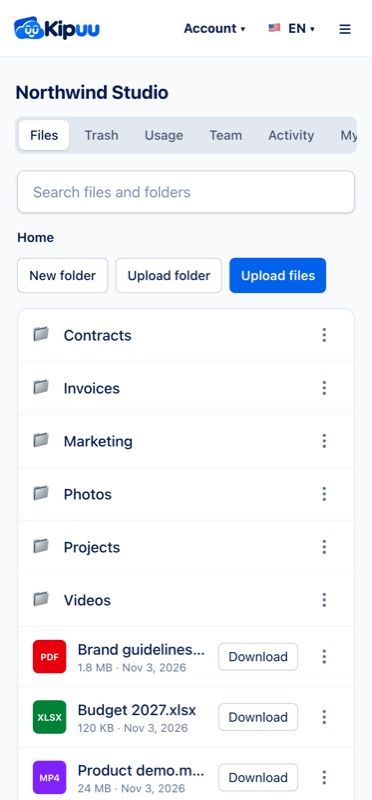
A file only appears in the folder once it has arrived complete. If your connection drops, the upload pauses and picks up again by itself as soon as you're back online. If a file can't be uploaded for another reason, it shows why, with a Retry button.
Find a file
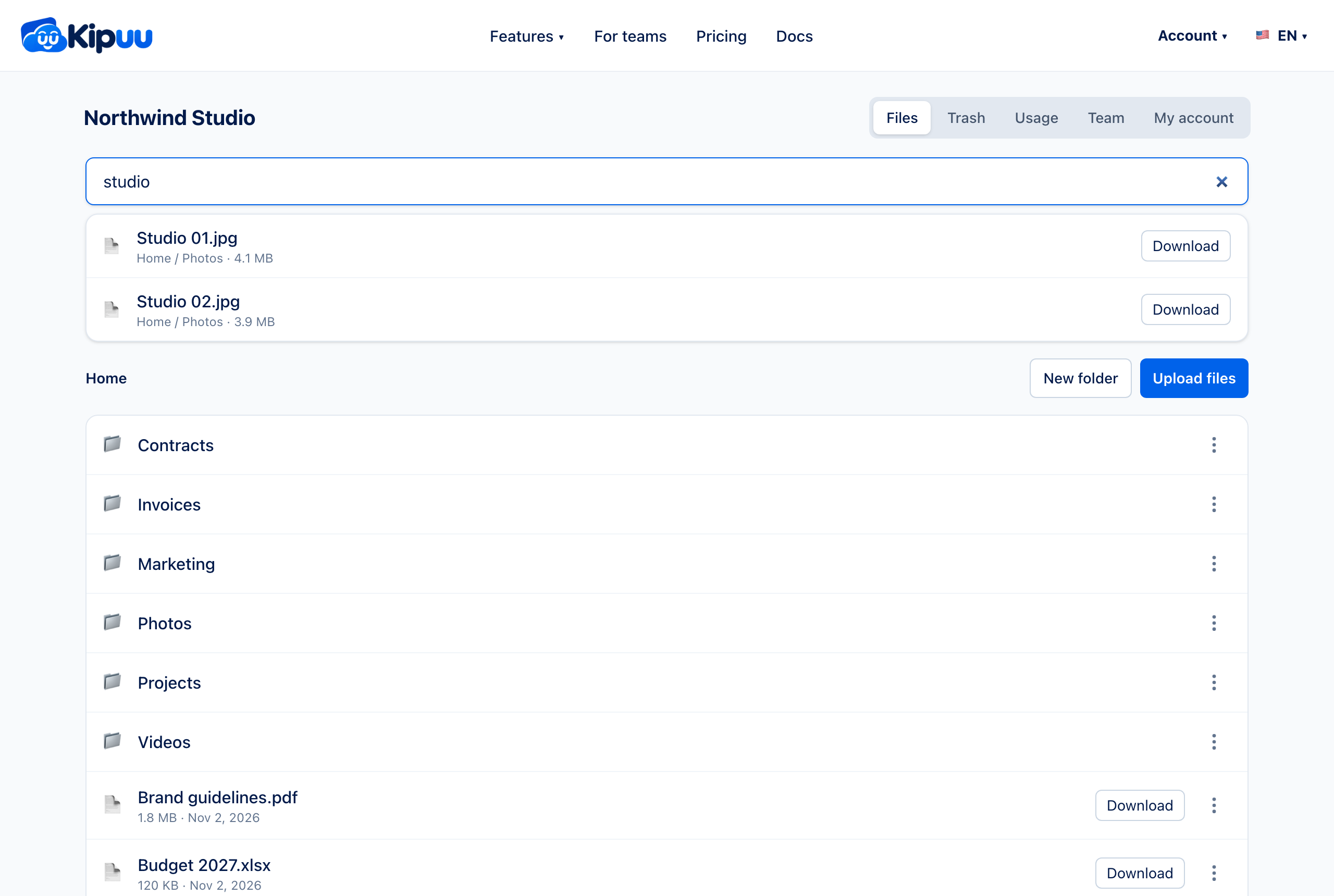
Type part of a name in the search box at the top. Kipuu searches the whole company as you type and shows where each result is. Tap a result to open its folder, or download it right there.
Large files
Videos, backups and other large files upload in several parts at once on the web, up to about 950 GB per file. You see a single progress bar with the speed and the time left, and if one part fails because of the connection, Kipuu tries it again by itself.
Closed the tab or restarted your computer halfway? From the same computer and browser, upload the same file to the same folder again within six days and Kipuu continues from where it stopped instead of starting over.
Upload a whole folder
Select Upload folder and pick a folder from your computer, or drag the folder onto the list. Kipuu keeps the same subfolders and uploads the files in line, three at a time, so you can upload hundreds of files in one go. At the top you see how many are done, and Clear finished tidies up the list.
Download a file
Select Download next to the file. The download link is private and expires after five minutes, so it can't be passed around.
Rename a file or folder
Open the three-dot menu next to it and choose Rename. Two items in the same folder can't share a name.